Showing posts with label 3D Printer electronics. Show all posts

Wednesday, 5 April 2017

DuetWifi - Updated Thermal Testing

During the prototype development of the DuetWifi we carried out extensive thermal testing to validate the thermal characteristics of the PCB design. The two areas we looked at in detail were the TMC2660 stepper drivers and the high current heated bed MOSFET and associated traces and connectors. The results of this thermal testing allowed us to confidently set the stepper driver current to 2.0A in firmware and recommend a maximum heated bed current of 15A.

Now the DuetWifi has been in production for over 7 months, we have much more information about the performance of the board in the real world. This combined with updated the thermal testing (thanks again to Andy Hingston) has allowed us to make the following changes:

  • increased the recommended maximum heated bed current to 18A 
  • increased the stepper driver current limit will shortly be raised in firmware to 2.4A.
Notes: 

  • this is for production (blue) DuetWifi and upcoming DuetEthernet boards, not for the prototype (white) DuetWifis.
  • If setting stepper driver current higher than 2A ensure there is a fan blowing across the back of the Duet or Duex board.
  • When first using stepper driver currents higher than 2A use M122 to check for over temperature warnings. Future versions of the firmware will have additional functionality to reduce stepper drivers power intelligently if an over temperature warning occurs.


We also took the opportunity to test the Duex5 stepper drivers, these perform better than those on the DuetWifi as they have even more on-board heat sinking. There is more details on the testing results, and caveats, below.


DuetWifi Stepper Testing : 2.5A Half Step Hold*

DuetWifi Thermal Test 2.5A Half Step Hold - 123.3C - Front View
*See the previous thermal testing blog post for an explanation.

Duex5 Stepper Testing : 2.5A Half Step Hold


Duex5 Thermal Test 2.5A Half Step Hold - 102.3C - Front View

DuetWifi Heated Bed MOSFET Testing : 20A soak test


DuetWifi Thermal Test Heated Bed 20A 86.7C - Front View

DuetWifi Thermal Test Heated Bed 20A 77.1C - Front View
The tests were completed under the following conditions:
  • Board under test: DuetWifi v1.01, Duex5 V0.7
  • Ambient Temperature: 25-27C
  • Soak Time: 20 minutes


Friday, 15 July 2016

DuetWifi Thermal Testing

The DuetWifi is our new advanced 3d printing electronics board based on the Duet 0.8.5 but completely redesigned with David Crocker (DC42 on the reprap forums). We are currently running a pre-order which is due to end 17 Jul 2016 with the first boards delivered in the first week of August. We have also had a batch of pre-production beta boards made which are with beta testers right now. We put one of the boards through thermal testing by Andy Hingston (who was part of the Duet 0.6 design team). This blog post will deal with the thermal testing, I have future posts planned to detail the hardware design of the DuetWifi.

The main concern for heat generation on the board are the stepper driver chips. The TMC2660s are rated to 2.8A RMS, however we have limited them in firmware to 2A for now. What our testing has shown is that the TMCs drivers, coupled with the board design mean these drivers will run cool in most "normal" desktop size 3d printers (~1A motor current) and have the capacity to scale for significantly larger printers comfortably (~2A motor current).

In order to do a comprehensive test we decided to test the TMCs with 1A, 1.5A and 2A (RMS) of stepper motor current in three conditions:

  1. With the motors held in a "half step": in this condition there is 100% of the current flowing through half of the stepper driver with 0% through the other half.
  2. With the motors held in a "full step": in this condition there is 1/Sqrt(2) of the current ~70.7% of the maximum current flowing through both halves of the driver.
  3. In a normal microstepping mode with a step frequency of 8000 steps/min at 16 microsteps, interpolated by the drivers to 256 microsteps.
In all cases we allowed the temperature to stabilise for 20 mins from an ambient temperature of ~25C

The results: in summary the drivers and heatsinking design on the board have performed really well. At 2A RMS in the "half step" condition (the worst case) we saw the temperature rise to 87.7C (a 62.7C rise from ambient). In the actual use case of the normal stepping at 2A it was a rise to 71C (a 46C rise from ambient). All these tests were performed powering X,Y and Z drivers on the board at the same time so that the Y driver had hot drivers on either side of it. We expected it to get the hottest but actually Z was generally the hottest by about a degree indicating the importance of the PCB to dissipate the heat.

The thermal camera output is below; click on the pictures for larger images.

1A Half Step hold
DuetWifi Thermal Test 1A Half Step Hold - 48.7C

1.5A Half Step hold
DuetWifi Thermal Test 1.5A Half Step Hold - 62.1C

2A Half Step hold
DuetWifi Thermal Test 2A Half Step Hold - 87.7C - Front View
This view of the back of the board shows just how effective the heatsinking on the back layer is.
DuetWifi Thermal Test 2A Half Step Hold - 71.0C - Back View


1A Full Step hold
DuetWifi Thermal Test 1A Full Step Hold - 51.0C

1.5A Full Step hold
DuetWifi Thermal Test 1.5A Full Step Hold - 62.1C

2A Full Step hold
DuetWifi Thermal Test 2A Full Step Hold - 79.8C


1A Normal Stepping
DuetWifi Thermal Test 1A Normal Stepping - 41.8C

1.5A Normal Stepping

DuetWifi Thermal Test 1.5A Normal Stepping - 55.5C

2A Normal Stepping

DuetWifi Thermal Test 2A Normal Stepping - 71.0C

The other area of interest as far as power dissipation on the bard was the heated bed MOSFET and associated power traces. We wanted to carry at least 15A so I increased the width of the trace and doubled it up (both front and back). With 15A on constantly we saw a stable temperature of 88.5C at the hottest point.

DuetWifi Thermal Test 15A Bed MOSFET - 85.3C on Front power (-) trace, 81.9C on MOSFET

DuetWifi Thermal Test 15A Bed MOSFET - 88.5C on Back power (+) trace

Friday, 7 August 2015

New Duet Electronics - Version 0.8.5

RepRap 3D printers with multiple extruders are becoming increasingly common however the majority tend to have dual extruders rather than 3 or more. Released in December 2013, the Duet 0.6 is now an established 32bit 3d printing electronics solution that has proven to be popular and versatile. With this in mind we decided to extend the Duet 0.6 to support two extruders on one board and developed the Duet 0.8.5.

The new features are highlighted below and importantly it features the same expansion header as the Duet 0.6 so it supports a Duex4 expansion boardA Duet 0.8.5 + a Duex4 gives support for 6 extruders. That's 9 stepper channels and 7 heater channels including the heated bed!

Duet V0.8.5 (picture updated 20160111 to show polarised pin headers)

We should thank David Crocker (DC42 on the RepRap forums) upfront for his helpful advice in the development of the Duet 0.8.5.

New Features in Duet 0.85

  • A second extruder channel (E1).
  • A second PWM fan output.
  • E1 motor current controlled by the SAM3X8E DAC0 channel. Thanks to David Crocker for this idea.
  • Two "always on" fan pins.
  • Dedicated header for the PanelDue.
  • Dedicated probe header, supports many different probes including David Crocker's mini IR probe.
  • Additional pins accessed on the SAM3X8E processor to enable the new features.


Improvements from 0.6

  • Lower noise components and circuit layout used for the 5V BUCK circuit.
  • Complete ground plane - reduce noise and potential ground loops.
  • Switches and power indication LEDS moved to the same edge as the SD/USB/Ethernet for simpler access and indication.
  • VSSA now present on the expansion header. This combined with the changes to the Duex4 0.2a mean that analogue ground is now used for all 7 temperature measurement channels.


Other Changes

Not necessarily improvements but changes to simplify the board or reduce component count:
  • USB is now a simple USB 2.0 device, rather than a Host/Device as before. This was never used on the 0.6 and removing it reduces component count.
  • Removed the IDC headers for the heatbed and motor/hotend wiring loom. The footprints took up valuable board space and I am not aware of a printer that used a complex loom terminated in a single IDC.
  • The FAN MOSFETs are now PMV40UN2R FETs which are lower power but more than adequate for fans and other lower current devices. They also don't use a second mosfet to increase turn on voltage, like in the 0.6 design, as that was overkill. This means they are inverting (use M106 I1 to change)
  • Extruder thermistor headers and fan headers moved towards the middle of the board to allow for the same board size as the Duet 0.6 to be used.
  • In order to support a 7th heater channel (Extruder 6) along with two PWM fans the PWM pin had to be shared. This means that you can't run 6 extruders AND 2 PWM fans at the same time.

Board Connections

Duet 0.8.5 Connections


The expansion header pins have changed slightly as shown in the picture below:


Duet 0.8.5 Expansion header pins back view
The pins on the Duex 0.6 that went to the extruder E1 on the Duex4 have been diverted to E1 on the Duet 0.8.5. New pins now go to E5 in place of E1 on the Duex4


Opensource Hardware

In the same manner as the Duet 0.6 the Duet is based on the Arduino Due, and the KiCAD source files are released under the CERN OHL 1.2 license, which means you are free to modify them and distribute products based on them, as long as you share your modifications under the same license. We believe this is a much more appropriate license for Open Hardware than a Creative Commons/GPL or other licence based around copyright.

The Duet 0.8.5 source files are available on GitHub so feel free to fork the project and modify away!

Duet 0.8.5 developed with the Open Source KiCAD EDA suite


KiCAD has continued to improve since I started to develop hardware over 2 years ago. It is a powerful, Open Source design suite which means that the source files for the Duet are open for anyone to use and so is the software needed to modify them.

Firmware & Webinterface

The Duet 0.8.5 runs RepRapFirmware, the linked github page has the Think3dPrint3d latest version based on David Crocker's fork. I have made the changes required to support the additional pins, extruder multiple PWM fans and hopefully this will be merged into David's fork shortly.

The firmware has also improved substantially since the Duet 0.6. The majority of these improvements Think3dprint3d can take no credit for as they are the work of the RepRap community.

David Crocker has done excellent work in optimising the firmware and implementing segmentation free support for Delta printers. Old-style firmwares rely on segmentation to calculate movement but this can add printing artefacts. On David's fork the delta transform is calculated for each step, i.e. it's segmentation free, and thus the quality is higher. This is only possible due to the higher processing speed of 32 bit electronics.

Christian Hammacher (on the RepRap forums as zombiepantslol) has done a fantastic job continuing to improve the web interface:

Updated RepRapFirmware Web Interface with 6 extruders - Large Screen (PC) view
I am now also using the webinterface from my mobile, here are a couple of screenshots of that:

RepRapFirmware Web Interface on Mobile

RepRapFirmware Web Interface on Mobile - Print page


Production & Availability

The Duet 0.8.5 boards are being produced for us in the UK by a local electronics manufacturer. The first batch is finished and available on our website:


Also available as a bundle with the Duex4, and I will be very excited to see someone using all 6 extruders!


Sunday, 12 April 2015

Duex4 V0.2a - Minor Updates

I have made a slight revision to the Duex4 v0.2 4 extruder expansion board for the Duet 3d printing electronics, the revised design is the Duex4 v0.2aThe revision is to add analogue GND to the expansion board input header connected by either a fly lead (Duet v0.6) or directly (later Duet versions).

Analogue GND should have been used from the beginning but I left it out by mistake. This omission lead to noisier temperature readings on the expansion board than on the Duet (as documented, with a fix, by David Crocker). This was annoying but I did not see a drop in performance as the thermal mass of the hotends was enough to cancel out any temperature swings commanded by this noise. None the less it needed to be fixed, but in a way that allowed the Duex4s to still be compatible with the Duet 0.6 expansion header.

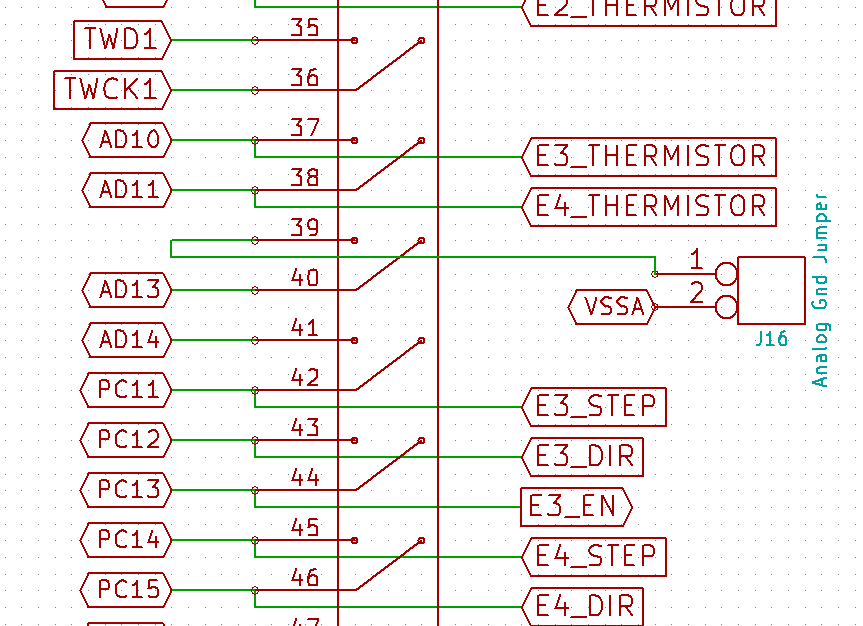
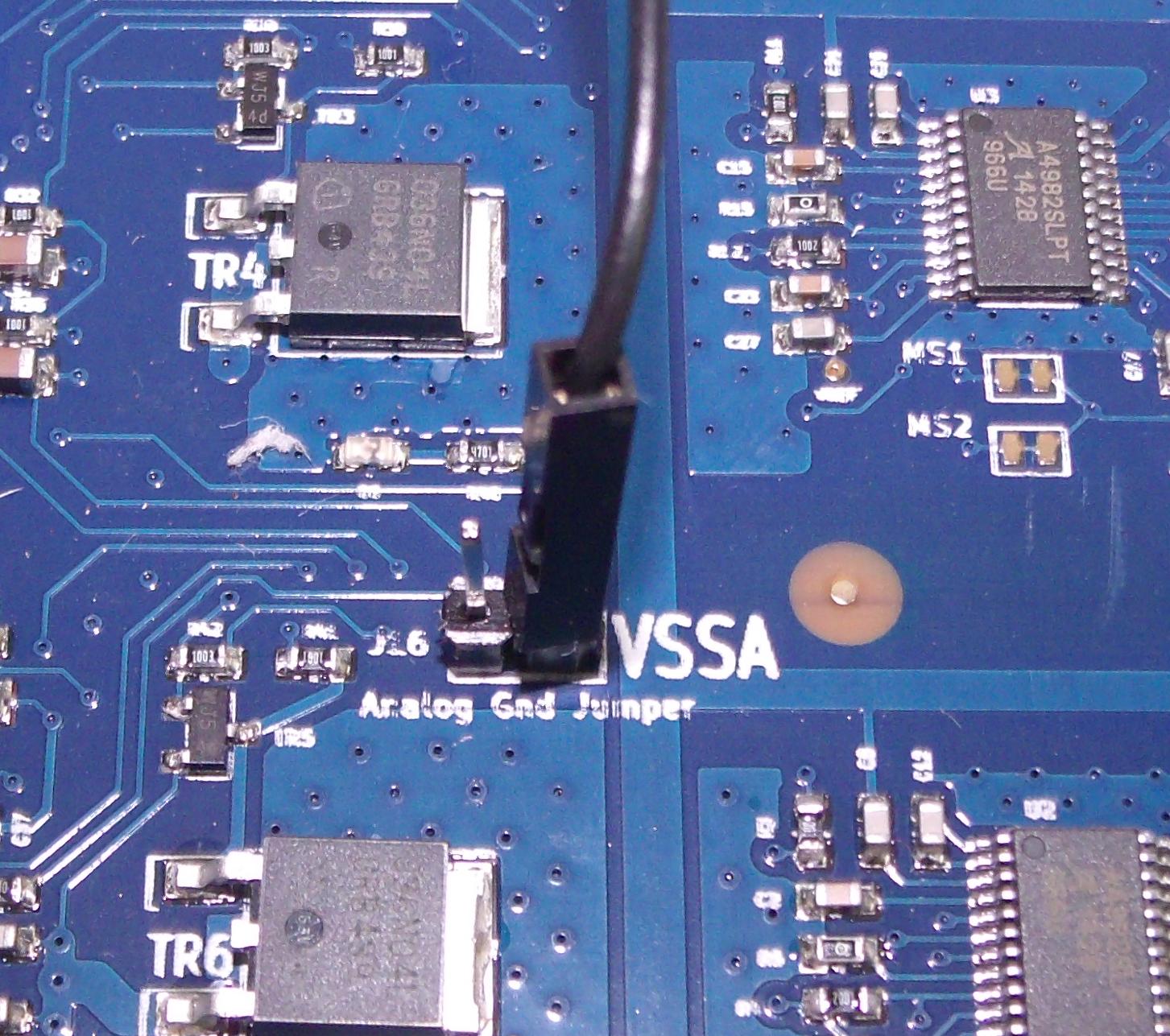
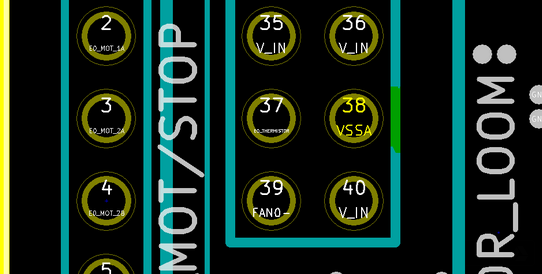
In the schematic you can see that pin 39 of the expansion header how connects to a jumper, and then on to VSSA (analogue GND) within the expansion board.


AD 12 used to be on pin 39 however it will be used later Duet versions for the probe input on a header on the main duet board.


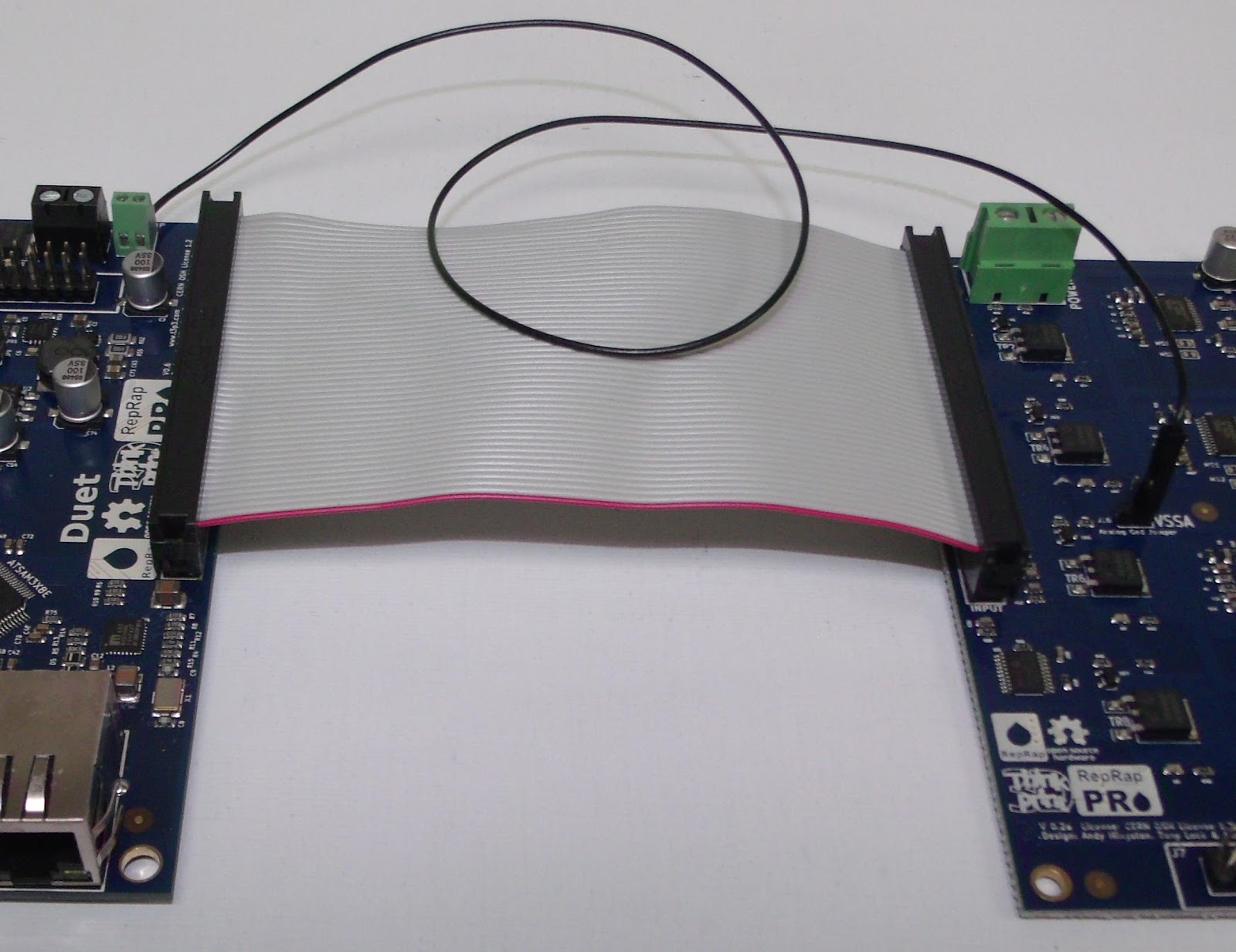
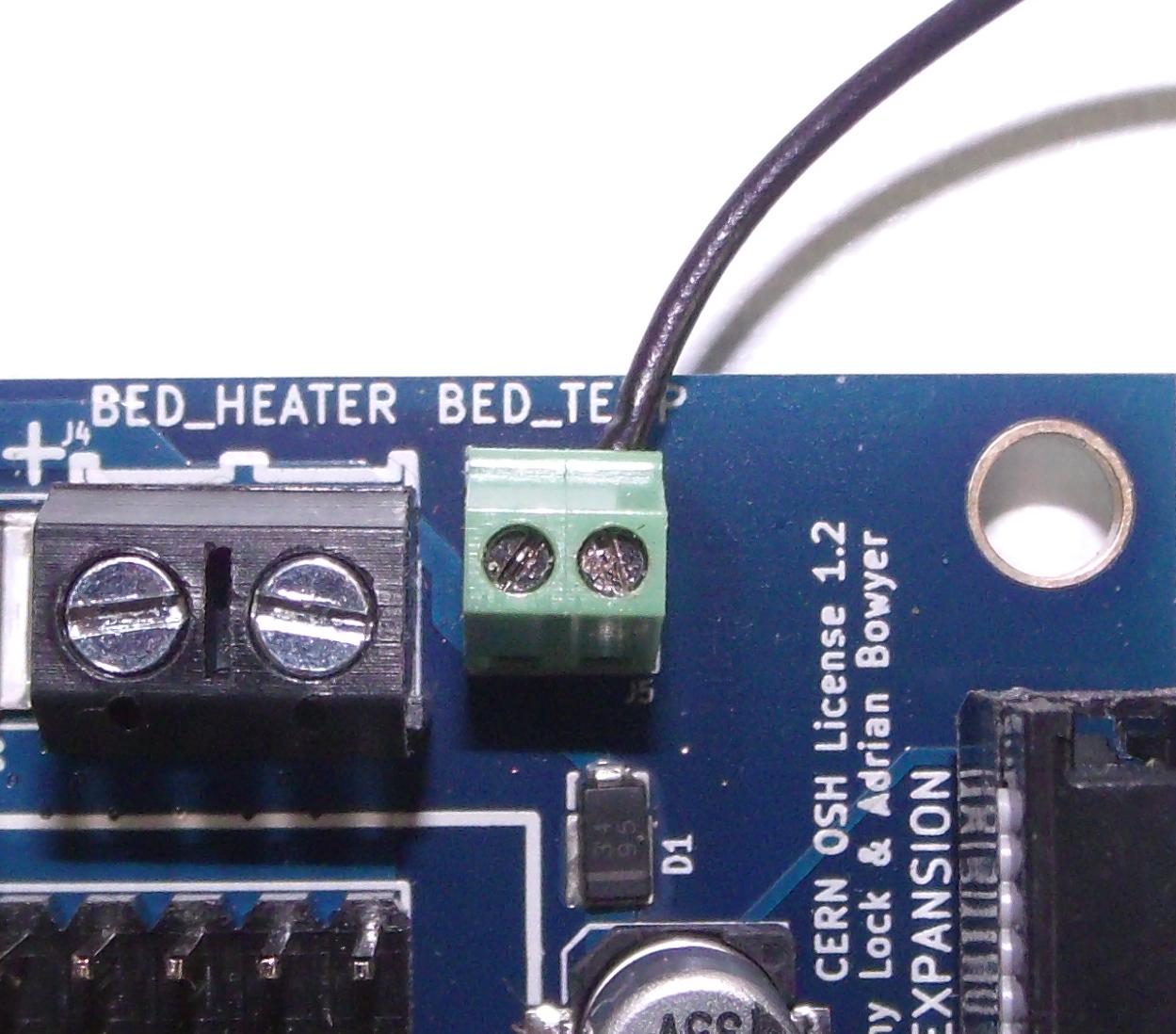
This allows for analogue GND to be fed in via pin 2 of the header on a Duet v0.6 or for a jumper to be used on later duet boards.The pictures below show the Duet v0.6 and Duex4 v0.2a with the analogue GND fly lead connected to the heated bed thermistor GND.


This fly lead can also be connected to the hotend thermistor ground screw terminal:

or VSSA Pin 38 on the 40 pin motor loom header:


All V0.2a Duex4s will be supplied with the necessary fly-lead for hooking up the analogue GND as described above.

The updated KiCAD source files are available on our Github, licensed under the CERN OHL v1.2

Monday, 20 October 2014

PanelOne on Sanguinololu

The PanelOne LCD display and control panel was originally designed for RAMPS1.4, and that is still the most sensible way to use it as it uses two 2x5 IDC cables that are readily available. The PanelOne circuit board is designed to work with 3.3V and 5V electronics and this weekend I tested it with Sanguinololu (effectively going full circle back to the original Panelolu - just a lot easier to put together and use!)


This works fine, although you do need to be careful to plug the pins in correctly:


The correct pins for Sanguinololu are:

Wire number    PanelOne             Sanguinololu
                         Aux2
1                       5V                         5V
2                       GND                     GND
3                       EN B                     Rx1
4                       EN A                     Tx1
5                       LCD DB7              A4
6                       LCD RS                PWM
7                       LCD DB6              A3
8                       LCD E                  SDA
9                       LCD DB5              A2
10                     LCD DB4              A1
                         Aux3
1 Not Connected
2 Not Connected
3                       CS                        A0
4                       CLK                      SCK
5                       DO                        MOSI
6                       DI                          MISO
7                       EN SW                  SCL
8                       VCC                      5V
9 Not Connected
10 Not Connected

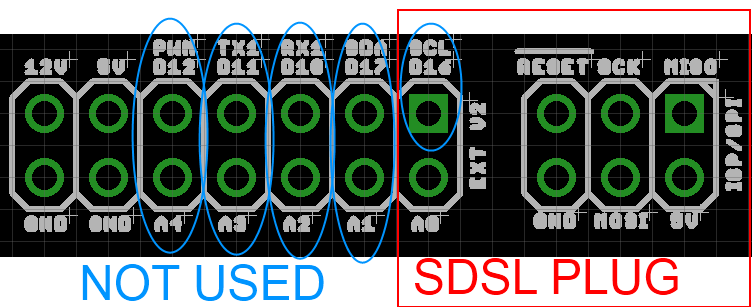
This blog post has a good image of the location of each pin on the Sanguinololu, re-posted below:

The IDC cables are numbered with wire 1 being the red coloured wire.

This will work out the box with the T3P3 version of Marlin by enabling #SDSUPPORT and #ULTIMAKERCONTROLLER in configuration.h

The process followed can be adapted to use the PanelOne on any electronics that runs Marlin and has enough free pins. Do let me know if you get it working on another board!


Monday, 18 August 2014

PanelOne LCD screen for 3.3V and 5V electronics

Following on from this post on using the PanelOne LCD screen with the Duet at 3.3V, this post shows the modified design for the PanelOne that uses a 3.3V LCD.

While I managed to get a specific LCD work with both 3.3V and 5V, it was an edge case. It was not transferable to other LCD manufacturer's displays and it may have shortened the display's life. To that end I changed the specifications to use a 3.3V LCD. This display is actually a 5V display with a voltage inverter and divider on board that provides -2V to VO.


PanelOne circuit board view from the back with 3.3V LCD


Close up of the -2V circuit on LCD

This -2V means that with 3.3V supplied, the voltage drop is 5V which the display driver chip needs to run the LCD pixels.

For reference here is the Schematic again, now on version 2.1, with the -2V on board annotated:


So the contrast pot on the PanelOne circuit board is acting as a variable resistor setting VO between 0 and -2V, and hence the contrast between "off" and "on" pixels on the LCD.

For a purely 3.3V use there would be no requirement for the 5V-3.3V LDO and the 4050 level shifter for the SD card. However, I want to be able to use this on both 3.3V and 5V logic with minimal changes. For the display to work with 5V we have two options. The first is to use a 5V display rather than 3.3V, thus requiring only 1 PanelOne circuit board design. Alternatively we could use the same 3.3V display and disable the -2V on VO. The simplest way to do this is to remove the resistor R6:


Close up of the -2V circuit disable with R6 removed

I have left it soldered on at one end so it's easy to switch back and forth. Obviously a switch would be even better (cue email to LCD manufacturer to consider updating their design).

This design is now proven on both 5V (RAMPS) and 3.3V (Duet etc) electronics:

PanelOne 2.1 with RAMPS

PanelOne 2.1 with Duet

The connection to the Duet is still made with single pin connectors and the RepRap Firmware does not yet support an LCD screen although the community (and me!) are working on it.

As always our designs are open hardware (CERN OHL 1.2) - the latest KiCAD files are available on our Github. In addition the updated case is also shared in STL and OpenSCAD on github.

We will be using the PanelOne v 2.1 circuit board in our Kossel Mini kits once our current stocks of 5V-only PanelOne boards are used up. In addition we have listed variations on the webstore, where you can choose the 5V only version or the 3.3V version (which you can adapt to 5V using the resistor de-soldering method outlined above).


Monday, 14 April 2014

Using the Duet with a WiFi router

UPDATE: If you are thinking about getting a Duet 0.8.5 and then adding the wifi solution to it you should consider getting a DuetWifi instead. Loads of cool features. Check out www.duet3d.com

Monday, 31 March 2014

Setting up Eclipse for Arduino Due to allow for compilation and upload of RepRap Firmware on the Duet

UPDATE: Have a look at the comments below- Jantje, the author of the Arduino plugin for eclipse has posted some updated advice, the key piece being:
First of all I advice "people not using eclipse already" to use the Product version. This is one install that includes eclipse and the plugin. You can find a download link for your os here: http://eclipse.baeyens.it/download.php. I advise to us the latest version. Mac users must install the latest version due to a change in arduino folder policy on mac.
This is a guide to installing and configuring the Eclipse environment on Windows in order to modify and compile the RepRap Firmware for Duet electronics. It may be generally useful for getting Eclipse to play nicely with the Arduino Due board as well.

Note that many printer settings can be changed in g-code within the RepRap firmware and you may not need to edit and compile a new firmware binary to run the RepRap firmware on your printer.

This guide draws from a number of sources: Adrian's initial guide, 3D-ES's post on the RepRap forum and personal experience. I would really appreciate comments and feedback on how this works on other versions of Windows. If anyone is able to do a similar guide for Mac/Linux that would be greatly appreciated.

Installation


32 Bit. Throughout this guide I have stuck with using the 32bit version of Eclipse. This should work in more situations than the 64 bit version however let me know if you are successful with the 64 bit versions.

Paths. To keep it simple I have used C:\arduino, C:\eclipse and C:\workspace\RepRapFirmware as directory paths in this example - other paths should work but ensure you substitute the new paths in the instructions below.

Install Arduino: download 1.5.6-rc2, Extract and move to C:\arduino

Install Eclipse: download Juno C/C++ SR2. Extract and move into C:\eclipse

Create workspace: make directories:  C:\workspace,  C:\workspace\RepRapFirmware and C:\workspace\RepRapFirmware\Libraries

Run Eclipse: C:\eclipse\eclipse.exe. When prompted for the workspace enter C:\workspace and choose not to be prompted again. Close the welcome help window.

Install the Arduino Eclipse plugin: Select the Help Menu, Install new software. Paste http://www.baeyens.it/eclipse/V2 in the "work with" field and click "Add". It will prompt you to name the repository, use "Arduino Plugin". Uncheck "Group items by category" checkbox then select "Arduino eclipse extensions" item. Click through Next a few times then accept the agreement and finish. Yes to unsigned content, then restart Eclipse.


Setup the Arduino Eclipse plugin:  Select Window menu, "Preferences",  "General",  "Workspace" Check "Save automatically before build". Then click "Arduino" and enter C:\arduino  in the Arduino IDE path and C:\workspace\RepRapFirmware\Libraries in the Arduino Library path. Apply the changes.

Note the "bossac" port number: With your Duet board plugged into USB (but not 12V) press the "erase" button (next to the ethernet port), then the reset button (next to the USB port). If you have not done this before on your PC it may start to install the driver for the native USB port. One this is done go to Control Panel, Devices and Printers and you will see the native USB port. For some reason Windows thinks this is a GPS camera for me:


This shows the port as COM8, note this for the next step

Setup the RepRap Firmware project: Select Arduino menu, "New Sketch". Set the project name to "RepRapFirmware". go next then select C:\arduino\hardware\arduino\sam\boards.txt and select Arduino Due (Native USB Port) as the board.
             NOTE the Arduino Due (Programming Port) will not work with the Duet. 
Set the port to "COM8" or whatever you found in the previous step.
Exit Eclipse

Get the RepRap Firmware source:  Get the version of RepRapFirmware you want to work with. Good options are:

The choice depends on what you are using the firmware for, and you can change to a different branch later. Whichever version you choose, click "Download ZIP" button on the right side of the page and copy the contents of the zip file into  C:\workspace\RepRapFirmware
Only overwrite "RepRapFirmware.cpp" and "RepRapFirmware.h" do not overwrite the other files.


Copy the Libraries: Download the Libraries (click download zip on the right hand side). Copy the sub directories of "Arduino-libraries-master" into the C:\workspace\RepRapFirmware\Libraries\
directory. Next copy C:\arduino\hardware\arduino\sam\libraries\Wire
to C:\workspace\RepRapFirmware\Libraries\

Setup the Paths: Open eclipse, in the Project Explorer window on the left click on the "RepRapFirmware" project and select refresh. All the source files should now appear in the project explorer tree. Next right click on the RepRapFirmware project again and select properties. Navigate to C/C++ General, Paths and Symbols:


the core and variant entries will already be there, add the rest making sure you select "Is a workspace path" and "Add to all languages":


Except the "C:\arduino\hardware\arduino\sam\system\libsam\include" path which needs to be added as a filesystem path:


Note If using the Dc42 version on the firmware you must add the "flash" directory as well:


Once they are all added click apply, choose to rebuild the index and select OK to close the window.

Eclipse is now setup and ready to compile the firmware.

Compiling RepRap Firmware: The compilation output is visible on the console tab selected at the bottom center. Choose the Project menu, clean, clean all, OK. Then click on the green tick to "Verify", ie compile the code.

The progress of the compilation will show in the console window and when complete there will output something like this:


Uploading the Firmware: With the Duet plugged into USB if you have not erased the loaded firmware click the erase button, then the reset button on the Duet. Then click the green arrow on the toolbar "Upload Sketch". The upload will start, shoose "always run in background". In the console windown the upload progress and then the verify progress will be shown:


The compiles firmware is now uploaded to the Duet board. Note if you look in devices and printers the port will have changed to the Arduino Due port:


With a different com port, this is the one you use in Pronterface to talk to the firmware over USB.

Firmware Modification


Detailed information modifying the firmware is outside the scope of this blog post. Printer configuration defaults are in Platform.h:


The screenshot above shows part of the platform.h for the Multi Extruder branch which defines all 8 channels for the Duet and Duex4.

I hope this post has been useful!