(Guest post by Ian Pegg, deckingman on the Duet3d forums and www.pegdecking.com)
(update, Ian now has his own blog, check it out for lots of interesting 3d printing ideas, especially around making multi extrusion even better!)
 |
Julia vase #11 Heatwave by Virtox
http://www.thingiverse.com/thing:126567/
Printed Ian Pegg |
I have been using a Diamond hotend (3 inputs and one output) on my custom built CoreXY printer, controlled by the DuetWifi for some time now. This blog post is is documentation on how to setup the DuetWifi with a Diamond hotend however it can be generalized to other multiple input - single output hotends. They might use different configurations but the principles will be the same. I have taken the definition of a mixing hot end as one which has multiple filament inputs and a single output (nozzle), although see the "issues with mixing" section at the end.
Hardware requirements.
Assuming you have the necessary number of extruders for your
particular hot end, you will need to be able to drive them all. The new Duet WiFi
and the older Duet v0.8.5 both have support for 2 extruders. If you have 3 or
more extruders, then you will need to procure an expansion board or use another method to connect additional stepper drivers to the Duet expansion
connector.
Important note. A mixing hot end must have filament loaded
into all inputs at all times. Failure to do this will mean that extruded
filament will find it's way up into any unused inputs where it will cool and
solidify causing a blockage which will be very difficult to clear.
Software and Firmware requirements.
You should have a slicer that is capable of
supporting multi part objects. Although some things can be done by post
processing the gcode file, objects which share the same Z position, would be very
difficult to deal with using this method. Also, the slicer and the printer
firmware should ideally be capable of supporting firmware retraction (G10) –
more on this later. At the time of writing, Slic3r (version 1.2.9) is known to
support these features. David's (DC42) branch of RepRapFirmware supports
firmware retraction as of version 1.10.
Some slicers support
multiple extruders but not necessarily multicoloured objects (although there
may be workarounds). It is often possible to use different extruders (tools)
for perimeters or infill or support materials.
Connections.
Refer to the Duet wiring diagrams and connect the first
extruder motor to E0, the second to E1 and any others to the relevant connectors on
the expansion board. I highly recommend that you put a label on each extruder
at this time to act as a reminder of which is which when you come to load
filament. Remember that the first extruder drive is always D0 (not D1). This may
initially confuse you when you start using slic3r which uses D1 for the first
tool instead of D0.
 |
| E0 and E1 Plugged into the DuetWifi |
 |
| E1 Plugged into the Duex5 |
A mixing hot end will only have one heater so connect this to
the first heater (marked E0). Similarly, connect the thermistor to the first
thermistor connector (also E0). It's not strictly necessary to use these exact
connections but if you decide to use some other terminals on the Duet board,
make a note of what you have connected to where. Finally connect the hot end
cooling fan to wherever you prefer. The most common configuration is to connect
the fan to one of the “always on” terminals but my fan is very high air flow
and so quite noisy. Therefore I prefer to have it connected to one of the PWM
fan terminals and run it in thermostatic mode so that it only comes on when the
hot end is above 45deg C.
Configuration settings – tool definitions.
The first thing to do is define the tools. To do this, it is
necessary to edit the confg.g file which can be done using the web interface:
 |
| DuetWebControl Web interface allows easy editing of all configuration files. |
There are a few different ways that you can define the tools.
You will probably need a tool for each of the “solid” colours. That is to say,
tools which will only use 100% of one filament. Then you will need a tool or
tools that combine different filaments in various proportions.
So to define a tool which uses only one colour, it is only
necessary to set which extruder and which heater it will use. The gcode to
define a tool is M563. So for the first 3 tools you could use something like
this;
M563 P0 D0 H1
M563 P1 D1 H1
M563 P2 D2 H1
This would define the first 3 tools (P0 to P2) to each use
one of the extruders (D0 to D2) but the same heater (H1).
IMPORTANT. Be aware that Slic3r and perhaps other slicers,
use a different numbering system and the first tool is defined as 1 not 0. This can be easily rectified by either defining tools starting with tool 1 and up, or by using the M563 S1 command in config.g to tell the firmware to add a 1 to every tools number
If we want to mix filaments, we'd need create more tools and
turn on mixing. So, we might have another tool defined like so;
M563 P3 D0:1:2 H1 ; Define tool 3
(P3) to use all three extruders (D0:1:2) and heater 1
M568 P3 S1 ; Enable mixing for tool 3
M567 P3 E0.34:0.33:0.33 ; Set mixing ratio for tool 3.
What this does is to define the tool T3 to use all 3 extruders
(D0:1:2) then it uses M568 to enable mixing for that tool. Finally, it sets the
mixing ratio using M567. In this case roughly the same quantity of each of the
3 filaments. However, this mixing ratio should always add up to 1. So, I've
used 0.34 of extruder 0, and 0.33 of extruders 1 and 2 (0.34+0.33+0.33 = 1.00).
We could also have other tools. Say for example we had Red
filament in extruder 0 and Yellow in extruder 1, we could define another tool
which would blend equal amounts of the tool to create Orange. It would look
like this:
M563 P4 D0:1:2 H1 ; Define tool 4 (P4) to use all three extruders (D0:1:2) and heater 1
M568 P4 S1 ; Enable mixing for tool 4
M567 P4 E0.5:0.50:0.00 ; Set mixing ratio for tool 4.
Of course, we can define as many tools as we like. The upper limit of tool numbers is constrained only by the Duet's free memory so over 400 tools are possible on the DuetWifi.
Managing a large number of tools would become cumbersome though
and there is another way. Once a tool has been defined to use all the extruders
and mixing has been enabled, we can simply change the mixing ratio before or during the print. It can be done before the print commences by putting the
mixing ratio into the start gcode file. It can also be done during a print by
entering the required M567 command in the web interface or by post processing
the gcode file that the slicer generates. In theory the tool mix ratio can be set differently for each gcode move.
So we can simply have one tool which is defined
as a mixing tool. In practice, this won't work with slicers which expect
different tools for different (coloured) parts of an object. So, I have found
the best compromise is to just define 4 tools (or one more than the number of
extruders), one for each of the primary filaments and one which is a
combination of all three. Coincidentally, in slic3r, if you set your printer to
have 3 extruders, it will give you 4 tools to choose from for any object.
Taking this a step further, it is still useful to be able to
use any combination of filaments for any tool. For example I could have red
green and blue filaments loaded but want to print with Cyan, Magenta and
Yellow. So all of my tools are defined as mixing tools but the first three use
100% of only one filament (actually this is not strictly true but we need to
consider retraction before I elaborate more). Then if I subsequently want to
change a tool to use a different filament or combination of filaments, I can do
so but simply changing the mixing ratio at the start of the gcode file, without
having to bother with all the other configuration settings. It can also be done
“on the fly” from the web interface. This can also be used if one wanted to
print a number of copies of the same object but in different colours. Simply
slice the object once, then edit the start of the gcode file to change the
mixing ratio and/or tool number.
Here is what the tool configuration part of a config.G file might look like.
; Tools
M563 P0 D0:1:2 H1 ; Define tool 0
G10 P0 X0 Y0 ; Set tool 0 axis offsets
G10 P0 R0 S0 ; Set initial tool 0 active and standby temperatures to 0C
M568 P0 S1 ; Enable mixing for tool 0
M567 P0 E1:0:0 ; Set mixing ratios for tool 0
M563 P1 D0:1:2 H1 ; Define tool 1
G10 P1 X0 Y0 ; Set tool 1 axis offsets
G10 P1 R0 S0 ; Set initial tool 1 active and standby temperatures to 0C
M568 P1 S1 ; Enable mixing for tool 1
M567 P1 E0:1:0 ; Set mixing ratios for tool 1
M563 P2 D0:1:2 H1 ; Define tool 2
G10 P2 X0 Y0 ; Set tool 2 axis offsets
G10 P2 R0 S0 ; Set initial tool 2 active and standby temperatures to 0C
M568 P2 S1 ; Enable mixing for tool 2
M567 P2 E0:0:1 ; Set mixing ratios for tool 2
M563 P3 D0:1:2 H1 ; Define tool 3
G10 P3 X0 Y0 ; Set tool 3 axis offsets
G10 P3 R0 S0 ; Set initial tool 3 active and standby temperatures to 0C
M568 P3 S1 ; Enable mixing for tool 3
M567 P3 E0.34:0.33:0.33 ; Set mixing ratios for tool 3
This is not quite how I have my tools defined but to
understand the reason for that, we need to look at extruder retraction which is
discussed later in this document.
 |
A view of the three e3d Tital Extruders suspended as a flying extruder above the diamond hotend.
|
Tool offsets
You will notice that in the above tool definitions, there is
no X or Y offset, or more precisely the X and Y offsets are set to zero (G10 Pn
X0 Y0). That is because there is only one nozzle. X and Y offsets are only
necessary where there are more than one nozzle and where they are physically
offset from each other. Theoretically these offsets should default to zero but
I always like to set them to zero, just in case something should get changed in
firmware which might affect the default settings.
Heating and standby temperatures.
You will also notice that in the tool definitions above, the
initial active and standby temperatures are set to zero (G10 Pn R0 S0). That is
because I don't want the hot end to start heating whenever a tool is selected.
Instead, I have the heating and standby temperatures set in my start gcode
where I can also put the specific temperature as needed for a specific
filament.
With a mixing hot end, we only have one heater and one nozzle
so if we are using the same type of filament in all 3 inputs, we can instantly
switch between tools without having for the next one to warm up, or the
previous one to cool down. Therefore, we can (should) set the tool active and
standby temperatures to the same values.
This is what I have in my start gcode for PLA in all 3
inputs.
G10 P0 S195 R195 ; Set tool 0 operating and standby temperatures
G10 P1 S195 R195 ; Set tool 1 operating and standby temperatures
G10 P2 S195 R195 ; Set tool 2 operating and standby temperatures
G10 P3 S195 R195 ; Set tool 3 operating and standby temperatures
Then when the print runs and a tool change is needed it can
be instantly switched with no warm up or cool down delay.
Obviously, if we had different types of filament in one or
more of the extruders, we would need to change these values for those extruders
(tools).
Extruder retraction.
With “normal” retraction, only the “active” extruder will
retract. That is to say that if we are only pushing one filament into a mixing
nozzle, normal retraction will only pull that single filament back. In effect,
all that happens is that filament is drawn from the unused inputs rather than
from the nozzle tip. In practice, this is just like having no retraction at
all.
What is needed is for all filaments to be retracted,
regardless of whether they are actively in use or not. Fortunately Duet
hardware and firmware give us the ability to accomplish this. It is done by
using firmware retraction using the codes G10 (retract) and G11 (unretract).
This might be slightly confusing because G10 is also used for tool offsets but
without a tool number, it is used for firmware retraction.
G10 is used in conjunction with M207 to define the retraction
amount and speed.
Here is what I have in my config.g file.
M207 S1.5 F3000 ;set firmware retraction
S is the amount in mm. F is the Feed rate mm/min (divide by
/60 to get mm/sec).
Optionally one could also have R (additional length on
unretract) and Z (additional Z lift in mm)
It is vitally important to use this firmware retraction with
a mixing hot end so, the slicer software must also be configured to use this.
In Slic3r this is simply a matter of ticking a check box which is in the
Printer Settings tab under “General”. Whenever retraction is needed, Slic3r
will insert a G10 command (and a G11 command to unretract). For other slicers,
there is sometimes a facility to post process the gcode output and one could
use this to replace whatever retraction codes was output with G10. Another
option would be to use some sort of text editor to do a “search and replace”.
Tool Definitions revisited.
Now that we have set our firmware retraction to retract all 3
filaments simultaneously there is another little issue that will become
apparent but can be avoided. With a mixing hot end we must have all the inputs
loaded with filament at all times otherwise extruded filament will simply find
it's way up into unused inputs where it will cool and solidify. We must also
retract all filaments simultaneously for reasons discussed above. Therefore,
when we print using just a single filament and extruder for a prolonged period
of time, what happens is that on the unused inputs, the same piece of filament
is constantly being retracted and unretracted. Eventually it will just get worn
away and will cease to move and retraction stops working and our prints get
stringy.
There is also another issue, which is that most filaments
will degrade if reheated and cooled a number of times which is what will happen
if we primarily use just a single filament for an extended period of time.
There are a couple of things which can help. The first one
is, before starting a print heat the nozzle and extrude some filament from each
of the extruders. This will ensure that there is a fresh piece of filament in
each of the extruders which may well last for enough retract and unretract
cycles without getting so worn that it fails to move.
The way that I prefer to do it is to define the tools so that
every tool always uses the main filament plus a small proportion of all of the
other filaments. In theory, one might think that this would result in muddy and
muddled colours. In practice, it is hardly noticeable and it uses the main filament but just enough of
the other inputs to keep them moving so that retraction isn't always moving the
same piece of filament back and forth and the same piece of filament isn't
being constantly reheated and cooled. Of
course, if the colour was absolutely critical, one could always load the same
filament into all 3 extruders but in my experience it's unlikely to be
necessary.
Here is what my final tool definition section looks like.
; Tools
M563 P0 D0:1:2 H1 ; Define tool 0
G10 P0 X0 Y0 ; Set tool 0 axis offsets
G10 P0 R0 S0 ; Set initial tool 0 active and standby temperatures to 0C
M568 P0 S1 ; Enable mixing for tool 0
M567 P0 E0.90:0.05:0.05 ; Set mixing ratios for tool 0 (90%,5%,5%)
M563 P1 D0:1:2 H1 ; Define tool 1
G10 P1 X0 Y0 ; Set tool 1 axis offsets
G10 P1 R0 S0 ; Set initial tool 1 active and standby temperatures to 0C
M568 P1 S1 ; Enable mixing for tool 1
M567 P1 E0.05:0.90:0.05 ; Set mixing ratios for tool 1 (5%,90%,5%)
M563 P2 D0:1:2 H1 ; Define tool 2
G10 P2 X0 Y0 ; Set tool 2 axis offsets
G10 P2 R0 S0 ; Set initial tool 2 active and standby temperatures to 0C
M568 P2 S1 ; Enable mixing for tool 2
M567 P2 E0.05:0.05:0.90 ; Set mixing ratios for tool 2 (5%,5%,90%)
M563 P3 D0:1:2 H1 ; Define tool 3
G10 P3 X0 Y0 ; Set tool 3 axis offsets
G10 P3 R0 S0 ; Set initial tool 3 active and standby temperatures to 0C
M568 P3 S1 ; Enable mixing for tool 3
M567 P3 E0.34:0.33:0.33 ; Set mixing ratios for tool 3 (34%,33%,33%)
These are what my mixing ratios will always default to. If I want to print a 2 or 3 coloured object using "solid" colours with no mixing, then what I tend to do is simply add M567 commands to the start gcode which will override the default values that I set in my config.g file. i.e. M567 P0 E1.00:0.00:0.00, M567 P1 E0.00:1.00:0.00, M567 P2 E0.00:0.00:1.00.
For example the snowflakes were printed with White on Gold. In this case, I had two tools. Tool 1 was 100% Gold, Tool 2" was 100% White. The base and the flake are separate stls. I added the base (gold part) to Slic3R platter, then in settings set it to use Tool 1. Then I used "Add part" to add the flake and set it to use Tool 2. So, when it printed, the first part of the flake started out Gold until the White filament purged through but that was only about an eighth of the first layer and there are 3 layers of white.
 |
Example of two colour printing with the Diamond Hotend.
|
Tuning and tweaking
With the exception of getting the mixing ratios right for
whatever printed outcome is desired, there is very little tuning and tweaking
necessary for a mixing hot end compared to a non-mixing hot end. The only thing
that springs to mind is that, because we retract all filaments together, the
retraction distance can be less.
On my particular machine, with Bowden tubes around 250mm long
for PLA at 195 deg C and print speed of around 60mm/sec, retraction of 1.5 mm
at 3000mm/min works well.
Of course, using firmware retraction makes setting it up a
breeze. Simply print two small cubes spaced about 50 mm or more apart then
during the print use Duet Web Control to change the retraction on the fly and
observe the difference. Use M207 Sn.n Fnnn where S is the amount in mm and F is
the speed (feed rate) in mm/min. Start with a small number and increase it
slightly until signs of stringing disappear. Repeat for other materials, print
speeds and temperature if necessary but you'll likely find one value that works
well for most situations.
Scripting mixing ratios
Another way to use a mixing hot end is to post process the gcode file to enter mixing commands at various places. I have a little python script which an M567 command after “n” layer changes. It runs through loops, each one progressively decreasing the mixing ratio for one filament and increasing another. So the colour changes throughout the height of the printed object from colour A to colour B, then colour B to colour C. This can be extended to go from C back to A and then the entire sequence repeated. This is how I produced the following objects:
 |
| Ian's vase |
 |
A big version of the Julia vase #11 Heatwave by Virtox
http://www.thingiverse.com/thing:126567/
Printed Ian Pegg |
The big Julia vase is printed with Red, Yellow and Clear translucent filaments. Starting at 100% red, reducing the Red by 1% and increased the yellow until 100% Yellow, then repeat going from Yellow to Clear. The mixing is changed at every 5th layer to get one complete iteration over the height of the object. The smaller rainbow Julia vase shown at the beginning of this post used Red, Blue and Yellow and changed the mixing at every layer change so ended up with Red,Purple (Red and Blue), Blue, Green(Blue and Yellow),Yellow, Orange (Yellow and Red) then back to Red and repeat the sequence.
Thoughts and ideas.
Most people think of multi coloured objects but even if your
slicer doesn't support multi part objects it may well support multiple
extruders. This means that one could choose to use one extruder for the infill
but a different extruder for the perimeters. One could then use an exotic or
expensive material on the outside but cheaper “everyday” filament for the
inside. Or possibly use a clear filament for the perimeters to give the object
a clear coating.
Printing support material using a different extruder is
another possibility that springs to mind.
Then there are other exotic materials such as electrically
conductive filament. It could be possible to print an electrical circuit within
an object.
Issues with mixing.
There is a fundamental restriction with the Diamond hot end. This
is that there is no mixing chamber as such. The advantage of this is that when
changing form one filament to another, the changeover period is very short.
Usually, if the printer is set to have two perimeters, by the time the second
perimeter is being printed, the transition from one filament to another is
complete. Obviously this depends on the size of the object. The disadvantage is
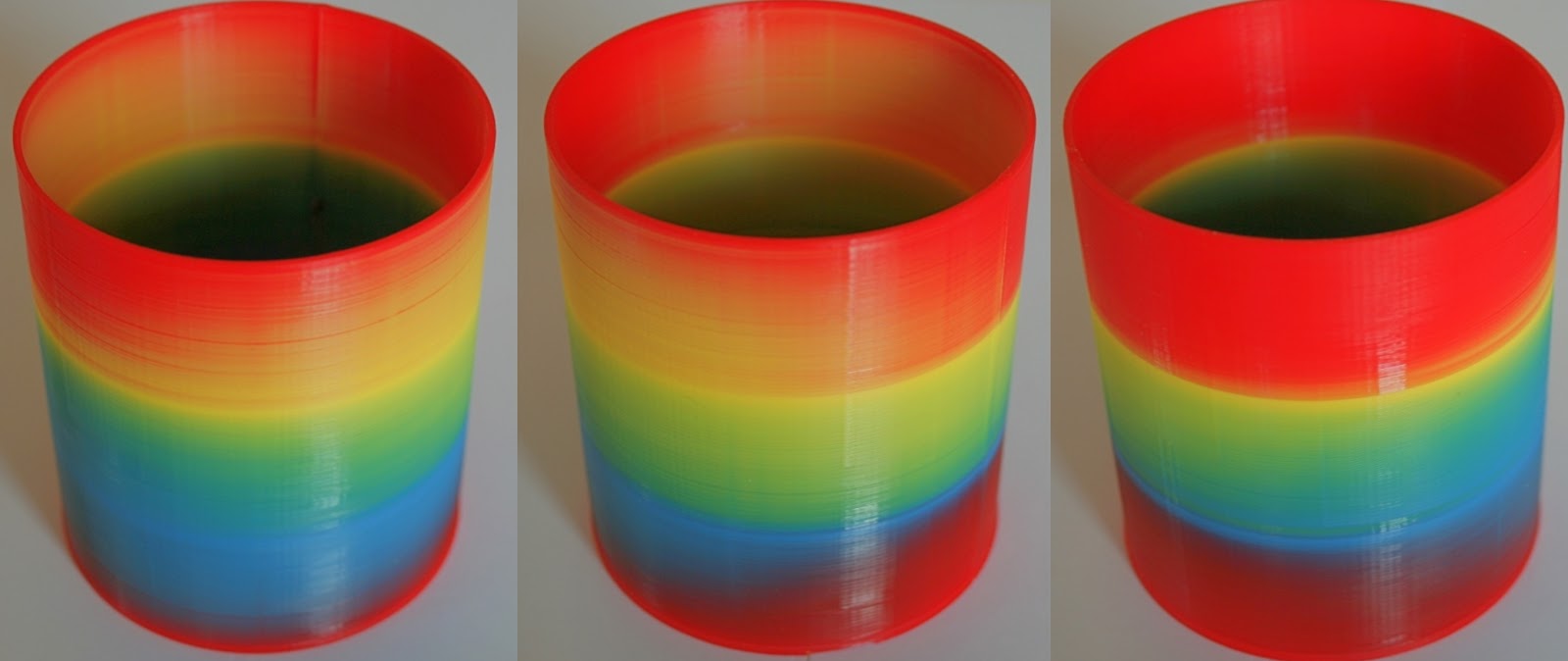
that when filaments are “mixed” they come out of the nozzle like stripy
toothpaste. So the colour is biased towards each input. This effect can be
partly negated by using translucent filament. Or it can be exploited for
decorative purposes. I have printed a 3 sided pyramid with each face a
different colour by using a single tool with a mixing ration of 0.34:0.33:0.33
and orientating the pyramid on the build plate such that each face is directly
opposite a filament input.
 |
The same pot, taken from 3 angles, showing the different sides
This due to partial mixing in the Diamond hotend. |
Video
This is a video of my custom CoreXY printing the large Julia Vase by virtox shown in the picture above: