Showing posts with label click encoder. Show all posts

Wednesday, 24 April 2013

Panelolu2 for RAMPS and Printrboard

Panelolu2 LCD display and control solution working with RAMPS 1.3 and Printrboard.

Finally they are here, the much requested adapter boards that allow the Panelolu2 to interface with RAMPS 1.3 and Printrboard. For details on the background of the Panelolu2, along with more details on how to set it up, how the print the enclosure etc, please see the previous post.

RAMPS 1.3 Adapter

The first point to note is that due to physical differences between RAMPS 1.3. and 1.4, this adapter is sized for RAMPS 1.3 and will not fit on RAMPS 1.4. 

[Update: Panelolu2 with RAMPS 1.4 adapter is also now available from our webstore]
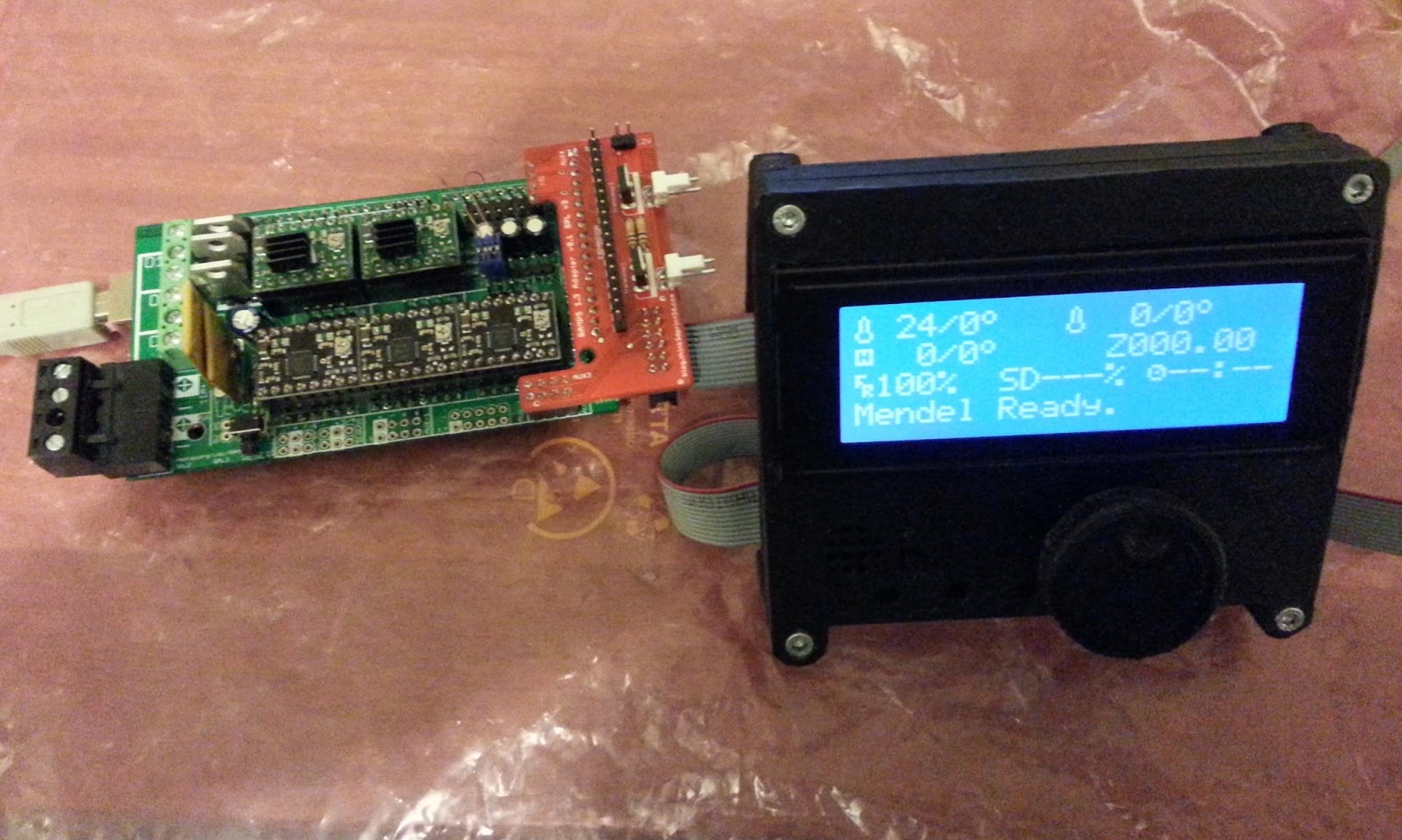


In a similar way to the Melzi and Sanguinololu adapters, the RAMPS 1.3 adapter has two MOSFETs that can be used to switch fans or other small loads. This allows the RAMPS 1.3 with Panelolu2 to control two extruders each with their own software controlled fan.

The schematic and annotated diagram below shows the RAMPS pins used and the connections.


View from the bottom


View from the top showing the purpose of each connector


Transistor 1 is connected to Arduino digital pin 45 which can be controlled by PWM, Transistor 2 is connected to Arduino digital pin 49, a straight on/off pin. The transistors switch the 12V supplied through the input - this must be connected in order to get any output from the transistors.

The additional expansion header breaks out all the pins not used by Panelolu2 along with the I2C pins if you want to add more devices to the bus.

Printrboard Adapter

Update 06 Oct 2014 - check out Colin Bell's blog post about getting this to work with the latest printrbots and board.


This is tested on Printrboard Rev D & E only as I do not have an earlier revision boards to test with.


For the Printrboard Adapter I decided to go for a minimalist approach. There are no additional MOSFETs - it is simply a physical adapter. The reason for this is twofold; firstly the Printrboard already has an onboard MOSFET to switch a fan and secondly, with the default fuse settings, there are no spare pins on the EXP 1 header.


As can be seen from the Schematic above the only pins left unused (and broken out to header SV1) are TDI, TDO,TMS and TCK. These are set as JTAG pins by default although they can be configured for use as I/O, this process is detailed in this blog post. I could have gone with an adapter board that connected to both EXP 1 and EXP 2 on the Printrboard but decided that small was best in this case.


Marlin Firmware Setup

The T3P3 branch of Marlin, available from github, has been updated to include support for the Panelolu2 on Printrboard and RAMPS. Every printer configuration is slightly different but the generic workflow for updating your firmware to support the Panelolu2 is as follows:


  1. If you are not already using it get the standard version of Arduino-0023 from the Arduino website, note that this version of Marlin has not been tested with Arduino 1.0 or higher.
  2. Get T3P3 Marlin from github.
  3.  For Printrboard follow the reprap wiki advice to get up and running with firmware, Lincomatic's blog post is also useful. For RAMPS, support for the Arduino Mega 2560 is built into standard arduino
  4. Get LiquidTWI2 as mentioned in my Panelolu2 blog post, note that configuration changes are no longer required in the latest version of LiquidTWI2.
  5. Modify the configuration.h of the Marlin to fit your printer setup (setting like controller board, axis dimensions, thermistors, etc). Update: This blog post should help.
  6. Confirm Marlin compiles and uploads with //#define PANELOLU2 still commented out in configuration.h.
  7. Then uncomment #define PANELOLU2 , along with #define EEPROM_SETTINGS and #define EEPROM_CHITCHAT and confirm it compiles and uploads. Note that with the #define PANELOLU2 uncommented, you must have the Panelolu2 connected or Marlin will hang and not finish initialising.
  8. Check the printer operation and calibration to ensure you have edited the Marlin configuration.h properly.


Getting one

As always the hardware is open source so the design files are available on Github:
https://github.com/T3P3/Panelolu2.

Update: Now available on eMakershop and Ebay.


Friday, 15 February 2013

Panelolu2

Panelolu2 - An I2C control solution for Sanguinololu, Melzi and more

The original Panelolu was designed to provide a simple user interface for a 3d printer controlled by a Sanguinololu and similar electronics - enabled by the Ultipanel code within the Marlin firmware. By connecting to the right pinouts it also works with Printrboard and RAMPS.

I have developed a new version which uses an I2C port expander to drive the LCD screen and adds a piezo buzzer and indication LEDs. This version uses less pins, making it compatible with the Melzi electronics and even leaves enough spare pins to drive a couple more outputs (such as an additional extractor fan and stepper driver cooling fan).


Panelolu2 Front View
  
In the photo above the grid covers the piezo buzzer and the H,E and F LEDs indicate that the Heated bed, Extruder and Fan (or second extruder) are on. It would be relatively simple to change the firmware to have these LEDs turn on for another reason. The R for reset and the encoder wheel are the same as in the original Panelolu although I have made the encoder wheel about 1/3 smaller to fit better. 

Circuit board

The Panelolu2 design simplifies the assembly by mounting all components on one circuit board that can be soldered directly to an LCD screen. The standard way to connect it to the screen is with a single row of 2.54mm headers as shown below. This row of headers could be replaced by wires (ribbon cable would be best) - enabling a variey of case designs, such as Printbit's Panelolu Box for Mendel Max.


This simplification also extends to the wiring which is now a 2x6 IDC plug on both ends of a ribbon cable. The circuit uses a combination of through hole and surface mount components; the other side of the prototype circuit board is shown below. The brightness and contrast pots are now on the back of the board and can be adjusted through the rear of the case.


I have tidied up the Schematic: the components are the MCP23017 port expander, the SD card circuitry, buzzer, click encoder and LEDS.


Of course the whole project is Open Source Hardware and the eagle files are available on github.

Case design

As mentioned above, the circuit board and LCD allow for multiple case designs. I have made a simple case with a back leg allowing the Panelolu2 to sit on the bench alongside the printer.
 
Panelolu2 Side View 

The case design is all done in OpenSCAD with both .scad and .stl versions of the files, available on Thingiverse. One of the great things I have found about Thingiverse is it allows you to embed the Thingiviews of the STL files, so here are the front and back case views:

Front
 
 
Back


The OpenSCAD file also allows the back leg to be generated to support the case at your chosen angle. For the rotary encoder I adapted Miserybot's "Spinner Knob" design to make it about 1/3 smaller and a lot thinner - the .stl is on Thingiverse and I will upload the OpenSCAD code once it is cleaned up.


Adapter Boards

One of the aims of the Panelolu2 was to reduce the complexity involved in wiring it up. I have designed adapter boards to allow compatibility of the Panelolu2 with various electronics. The picture below shows the adapter board connected to a Sanguinololu.


Update added the Sanguinololu and Melzi adapter schematics:


As can be seen from the schematic the two mosfets for driving additional light loads such as fans are on the PWM and A3 pins on the Sanguinololu. These pins can be accessed as Arduino digital pins 4 for the pin labelled PWM and 28 for the pin labelled A3. In Marlin firmware to turn on the fan connected to Transistor 1:

M42 S255 P4

And transistor 2

M42 S255 P28

In overview the picture below shows the inputs and outputs from the prototype Melzi adapter board.


The Schematic for the Melzi adapter board is:


The same logic as described the solder jumper operations on the Sanguinololu adapter board applies to the Melzi board. For the two additional outputs they are on pin A4 and A3 which are digital pins 27 and 28 respectively.In Marlin firmware to turn on the fan connected to Transistor 1:

M42 S255 P28

And transistor 2

M42 S255 P27

For basic operation the ISP and expansion header plug into the Melzi and the Panelolu plugs into its 2x6 connector. If desired FETs can be mounted to switch a 12V supply, for example to drive external fans.

As an alternative to the adapter board, standard female housings with crimp connectors could be used. I intend to design boards for Printrboard and RAMPS in the near future.
(update: done, see this blog post)

I2C encoder option 

Instead of linking the encoder and switch directly to pins on the Sanguinololu, Melzi or other electronics, the hardware has the option to run the encoder and switch over I2C. This would free up a couple more pins but the option is not yet supported by firmware. The Panelolu2 circuit board and adapter boards have solder jumpers, shown below on the back of the Melzi adapter board


Currently the firmware does not support routing the encoder signals over I2C so by default these jumpers will be set for normal operation.


Firmware 


The Panelolu2 only runs on Marlin firmware at the moment. Excellent work was done by Daid in the Marlin code to split the LCD screen hardware from the user interface. This made it straightforward to implement the Panelolu2 code. As mentioned in previous posts LiquidTWI2 by Lincomatic is required; download it from github, rename the directory from "LiquidTWI2-master" to "LiquidTWI2 and put it in the

arduno-0023/libraries/

sub-folder.

UPDATE: - This step is no longer required in the latest version of LiquidTWI2 (1.2.4) the library will work out the box with no configuration changes required.

By default the Panelolu2 is disabled in LiquidTWI2, after saving the directory, edit LiquidTWI2.h to remove the comments on line 10:

 //  #define PANELOLU2 //only possible....


To

    #define PANELOLU2 //only possible....
 

Continue following the instructions from here:

Then download the T3P3 fork of Marlin, make the changes you need to configuration.h to suit your printer and ensure :

#define EEPROM_SETTINGS
and

#define PANELOLU2

are uncommented within configuration.h then upload as normal. The compiled Marlin is ~100k, a very similar size to Marlin compiled for the original Panelolu, so the electronics board will need enough space (a 1284P is fine, a 644P does not have enough space).


Summary

Update, added this section to summarise the process of getting the Panelolu2 working Sanguinololu.


  1. If you are not already using it get the standard version of Arduino-0023 from the Arduino website, note that the T3P3 version of Marlin has not been tested with Arduino 1.0 or higher.
  2. If you are not already using a Sanguinololu with 1284P then update the avrdude.conf file in the standard Arduino-0023 to include a definition of the atmega 1284p, I have used this one for a year now. Be sure to put it in arduino-0023\hardware\tools\avr\etc\ and rename or overwrite the old one. More detail in my first blog post.
  3. Get T3P3 Marlin from github.
  4. If you are not already using a Sanguinololu with 1284P add the "Marlin\ArduinoAddons\Arduino_0.xx\Sanguino" directory to "arduino-0023\Hardware\" directory. This provides the Sanguino extensions required for Sanguinol and Melzi.
  5. Get LiquidTWI2 as mentioned above, note that configuration changes are no longer required in the latest version of LiquidTWI2.
  6. Modify the configuration.h of the Marlin to fit your printer setup (setting like controller board, axis dimensions, thermistors, etc). Its best to copy these from the configuration.h of your existing firmware. Update: This blog post should help.
  7. Confirm Marlin compiles and uploads with //#define PANELOLU2 still commented out in configuration.h.
  8. Then uncomment #define PANELOLU2 , along with #define EEPROM_SETTINGS and #define EEPROM_CHITCHAT and confirm it compiles and uploads. Note that with the #define PANELOLU2 uncommented, you must have the Panelolu2 connected or Marlin will hang and not finish initialising.
  9. Check the printer operation and calibration to ensure you have edited the Marlin configuration.h properly.

Availability

As always the hardware is open source so the design files are available on Github: https://github.com/T3P3/Panelolu2.

Update: Now available on our webstore and on eMakershop and eBay 

Tuesday, 18 December 2012

I2C port expander driving an LCD screen, click encoder and more

Adventures with the MCP23017 I2C port expander

Since working on the Panelolu I have been planning a project using the MCP23017 port expander. This chip gives 16 additional I/O ports which can be accessed using the I2C protocol, an easy to use bus communication protocol that is supported in the Arduino environment using the Wire library. My first exposure to I2C was during development of the Panelolu when I came across the Hobbytronics I2C LCD backpack, Adafruit also do a fancy 3 colour backlight LCD. I started this project in August but then put it on the back burner due to other commitments.

I re-invigorated the project recently as we get a lot of emails from people wanting to use the Panelolu with a Melzi or a Sanguinololu where pins on the expansion header are dedicated to other things. In both these cases the original Panelolu took too many pins. Added to this Nophead has announced he will be using Melzi on the Mendel90 which I feel is the best printer design out there right now.

Hardware setup.

The setup I have tested on uses a Sanguinololu but any similar reprap controller should work. The ISP header and 4 more pins are required:


Leaving 6 pins for other uses.

The circuit is setup as in the schematic


The Sanguinololu ISP and Expansion header pins are allocated as follows:
  • SCL and SDA are connected to pin 12 and 13 of the MCP23017
  • MOSI, MISO, SCK and A0 provide the SD card signals as they do in the Panelolu and SDSL.
  • A1 is the interrupt pin and I added an LED to this to help with debugging which is not illustrated in the schematic.
  • 5V and GND are distributed as required
from the MCP23017 the LCD display, Buzzer, Click Encoder and 3 LEDs are connected. There are 2 spare pins so further LEDS or something else could be connected.

Software Setup

I began testing in August with the library from Adafruit which does a great job of exposing the basic read and write functions of the expander. Recently Lincomatic updated the LiquidTWI2 library which extends the Adafruit library and I switched to that. It does not provide access to the interrupt functionality of the MCP23107 so I added some additional functions to the library:


//check registers
uint8_t LiquidTWI2::readRegister(uint8_t reg) {
  // read a register
  Wire.beginTransmission(MCP23017_ADDRESS | _i2cAddr);
  wiresend(reg);   
  Wire.endTransmission();
 
  Wire.requestFrom(MCP23017_ADDRESS | _i2cAddr, 1);
  return wirerecv();
}

//set registers

void LiquidTWI2::setRegister(uint8_t reg, uint8_t value) {
    Wire.beginTransmission(MCP23017_ADDRESS | _i2cAddr);
    wiresend(reg);
    wiresend(value);
    Wire.endTransmission();
}


In addition I added a function to switch the buzzer pin rapidly at a certain frequency to make a sound

//cycle the buzzer pin for a certain duration (ms) and at a certain freq (hz)
void LiquidTWI2::buzz(long duration, uint8_t freq) {
  int currentRegister = 0;
  // read gpio register
  Wire.beginTransmission(MCP23017_ADDRESS | _i2cAddr);
  wiresend(MCP23017_GPIOA);   
  Wire.endTransmission();
 
  Wire.requestFrom(MCP23017_ADDRESS | _i2cAddr, 1);
  currentRegister = wirerecv();
  duration *=1000; //convert from ms to us
  int period = (1.0 / freq) * 1000000; //*1000000 as the delay is in us
  long elapsed_time = 0;
  while (elapsed_time < duration)
  {
        Wire.beginTransmission(MCP23017_ADDRESS | _i2cAddr);
        wiresend(MCP23017_GPIOA);
        wiresend(currentRegister |= M17_BIT_BZ);
        while(Wire.endTransmission());
        delayMicroseconds(period / 2);
        Wire.beginTransmission(MCP23017_ADDRESS | _i2cAddr);
        wiresend(MCP23017_GPIOA);
        wiresend(currentRegister &= ~M17_BIT_BZ);
        while(Wire.endTransmission());
        elapsed_time += (period);
   }
}


I need to get up and running on GitHub until I do so the T3P3 version of LiquidTWI2 is available here. just download the as a zip and extract into the libraries subdirectory of the arduino folder so it looks something like:

C:\arduino-0023\libraries\LiquidTWI2\

At this time I have only tested it with Arduino 0023.

A1 is not a hardware interrupt pin so the PinChangeInt library for the Arduino is required. I used version 2.19, just download it according to the instructions and put in the libraries subdirectory of the arduino folder.

Example Sketch

I adapted the HelloWorld_i2c sketch that comes with LiquidTWI2, the full sketch is in the example sub directory of the T3P3 version of LiquidTWI. In essence the program uses the LiquidTWI2 library to setup communication with the MCP23017, configure and display information on the LCD and set the buzzer and LED pins.

It also sets interrupts on the click encoder pins and switch which trigger an interrupt on A1 every time the click encoder is turned or switch is pressed.

(from setup() )
...
    lcd.setRegister(MCP23017_GPINTENA,0x07); //enable interrupts on 3 pins
  lcd.setRegister(MCP23017_DEFVALA,0x07); //set the default values as 1

  //set to compare with register values set to 1 with DEFVALB 
  lcd.setRegister(MCP23017_INTCONA,0x07);
  lcd.setRegister(MCP23017_IOCONA,0x02); //enable active high for interrupt pin
  //read the interrupt capture register to reset it
  uint8_t reg = lcd.readRegister(MCP23017_INTCAPA);
  pinMode(interruptPin, INPUT); //set A1 (pin 30) as input

  //attach an interrupt using the pinChangeInt library to interruptPin
  PCintPort::attachInterrupt(interruptPin, &quickInt, RISING);

... 


The state of the click encoder and switch pins are are captured at the interrupt point and read, determining which way the encoder is turned or if the switch was pressed.

  void handleInterrupt() {
    //reset the flag
    rotating=false;  
    //get the interrupt status of the pins
    //this will clear the flag allowing further interrupts
    intCap=lcd.readRegister(MCP23017_INTCAPA);
    uint8_t test = intCap & 0b00000111;

    //only deal with the situation where the encoder is turned without the
    //click button held down
    if (test == 0b101) encoderPos += 1;
    if (test == 0b110) encoderPos -= 1;
    //mask out the encoder bits and look at the click button
    test &= 0b100;
    if (test == 0b000) clickButton = LOW;


    // while interrupts are still occurring clear the register (switch bouncing) 
    while(digitalRead(interruptPin) > 0)
    {
      
      lcd.readRegister(MCP23017_INTCAPA);
      delay (10);
    }
  }


The program does not make use of the SD card part of the design - that is planned for later when this is integrated into Marlin firmware. Also further testing on the buzzer is required as I believe the frequency is fairly limited by the I2C protocol and associated processing.

The video below demonstrated the example in operation.

Now off to make it work with Marlin firmware.


Sunday, 22 July 2012

Panelolu with Printrboard

Panelolu with Printrboard

Update: The Panelolu2 has replaced the Panelolu. It is much quicker to install, has adapter boards to no messing with cables and uses less pins. The blog post with the information is here, it is available to buy in our webshop.

The Printrboard is a based on the Teensylu which is itself a derivative of the Sanguinololu; the main difference is the use of the AT90USB1286  in place of the ATmega644P or 1284P.


Thanks to the work of Lincomatic, Marlin firmware will run on the AT90USB1286. The Printrboard section of the RepRap wiki page has information on the board and an outline of how to upload the firmware - you will need Lincomatic's fork of Marlin. The Printrboard I bought was supposed to come with a bootloader but that did not work. I followed Lincomatic's instructions to install the CDC bootloader using the Pololu ISP I have used previously on ATmega644P and ATmega1284P micros. It's worth ensuring you have a working setup with the Printrboard connecting to your control software (Pronterface for me) and firmware uploading before you go any further.

Built in SD card reader or SDSL?

The Printrboard has a build in SD card reader so you do not need an SDSL. That said I prefer to have the electronics hidden away, so using the SDSL in the Panelolu is my preference. Both options will work and are described below.

Hardware and wiring the Panelolu

The wiring internal to the Panelolu is identical to that described in my previous post, with the option not to bother with wires 13,15,16,17,19,20,21,22 and the 10 pin IDC connector if you are going to use the build in SD card reader on the Printrboard.
Unfortunately the design of the expansion headers on the Printrboard does not keep to the standard 2.54mm spacing between the expansion header and the ISP header (and 4 pins on ext1 are not I/O by default) - a simple IDC connector will not fit without bending the pins . The solution is to use the same connectors that are used on the LCD and circuit board within the Panelolu.


The pin out is as follows:
 
Ribbon cable wire number
Printrboard Pin Label
Marlin Pin
number
Marlin Pin
name
 1
 Not used *
---
---
 2
 Not used *
---
---
 3
 GND
---
---
 4
 5V
---
---
 5
 PD4
4
LCD_PINS_D7
 6
 A3
41
LCD_PINS_RS
 7
 PD6
6
LCD_PINS_D6 
 8
 TX1
2
ENC1
 9
 PE1
9
LCD_PINS_D5
 10
 RX1
3
ENC2
 11
 PC1
11
LCD_PINS_D4
 12
 SDA
1
LCD_PINS_ENABLE
 13
 A2***
40
SDSS
 14
 SCL
0

 18
 RESET**
---
---
* Wire 1 and 2 are not connected/used but kept in for consistency with the original instructions.
** Can come either from the RESET pin on the expansion header or the ISP header.
*** Only required if a SDSL is used rather than the on board SD card reader

Update There was a mistake in the table above, thanks to Colin Bradburne for bringing the problem to my attention. It is fixed now - the lines in red have been amended.

If using the SDSL rather than the on board SD card reader then the following connections to the ISP header are used as well.

Ribbon cable wire number
Printrboard Pin Label
Marlin Pin number
Marlin Pin name
 17
 GND
---
 ---
 18
 RESET
---
 ---
 19
 MOSI
 22
MOSI_PIN
 20
 SCLK
 21
SCK_PIN
 21
 5V
---
 ---
 22
 MISO
 23
 MISO_PIN

The Printrboard I bought does not have the expansion header pins labelled, I have annotated the pins on the screen shot of the board below:
The 4 pins labelled "JTAG PINS" are set to the JTAG interface by default - I have done a separate blog post about how to change the fuse settings to gain access to these pins as I/O. This does mean that we can't fit the Panelolu connections onto just one expansion header, hence the 4 pins on the second expansion header towards the centre of the board

The ribbon cable with the connectors will look like this:

Pairing this picture with the annotated screen shot of the board should show how to plug in the cables. (note that wire 1 and 2 are not in this picture as they are not used and that a 4 pin connector is used for MISO,SCLK and RESET because I ran out of 3 pin connectors)

Firmware configuration

The following firmware changes to Marlin are required to get the Panelolu working with a Printrboard. Please note that line numbers are based on my version of Lincomatic's branch of Marlin - they may be slightly different with a different version or after additional changes are made.

Configuration.h

line 34-40:
#define MOTHERBOARD 81

#if (MOTHERBOARD == 81) //printrboard
 #define SDSUPPORT
 //comment out the following line to use onboard SD card reader

#define USESDSL
#end
if
 
line 234:
#define ULTIMAKERCONTROLLER  

Pins.h

within the Printrboard (81) section
line 953 -984  
  #ifdef ULTRA_LCD
    #ifdef NEWPANEL
      //we have no buzzer installed
      #define BEEPER -1
      //LCD Pins
      #define LCD_PINS_RS        41
      #define LCD_PINS_ENABLE    1
      #define LCD_PINS_D4        11
      #define LCD_PINS_D5        9
      #define LCD_PINS_D6        6
      #define LCD_PINS_D7        4

      //The encoder and click button
      #define BTN_EN1 2  //must be a hardware interrupt pin
      #define BTN_EN2 3 //must be hardware interrupt pin
      #define BTN_ENC 0  //the click
      //not connected to a pin currently
      #define SDCARDDETECT -1
     
      //from the same bit in the RAMPS Newpanel define
      //encoder rotation values
      #define encrot0 0
      #define encrot1 2
      #define encrot2 3
      #define encrot3 1
     
      #define BLEN_C 2
      #define BLEN_B 1
      #define BLEN_A 0

    #endif //Newpanel
  #endif //Ultipanel

Sd2PinMap.h

Line 224-236

// SPI port
#if MOTHERBOARD == 81 //printrboard
#ifdef USESDSL  //SDSL with Panelolu
uint8_t const SS_PIN = 40;    //F2
#else
uint8_t const SS_PIN = 26;    // B6
#endif
#else
uint8_t const SS_PIN = 20;    // B0
#endif
uint8_t const MOSI_PIN = 22;  // B2
uint8_t const MISO_PIN = 23;  // B3
uint8_t const SCK_PIN = 21;   // B1 

To explain what the firmware changes actually do:
  • Add the USESDSL define to configuration.h which allows easy toggling between the onboard SD card reader and the SDSL
  • Enable the ULTIMAKERCONTROLLER which the PanelMax and Panelolu are derivatives of.
  • Define the pins that are used for the Panelolu within the Printrboard section of the pins definition file
  • Add a check to the SdPinMap to see if SDSL on onboard card reader is selected with the USESDSL define.
Summary

To get a Panelolu working on Printrboard: 
  • Confirm you can connect to the Printrboard and upload firmware - if not follow Lincomatic's instructions for loading a bootloader.
  • Get Lincomatic's branch of Marlin and make the changes listed in the Firmware section above.
  • Get the components required for a Panelololu and wire up the Panelolu end as described in my previous post.
  • Wire up the end of the ribbon cable that is going to the Printrboard as described above.