Monday, 26 August 2013

Plastic Primer and ABS adhesion to glass bed

(Summary for the busy - plastic primer does not help ABS adhesion to glass heatbeds!, for those interested in more detail -read on)

I have been using "ABS juice" applied to glass sheets on top of a heated bed for a long time now as the only reliable method I have found to get parts to stick well. The one thing that continues to annoy me is having to reapply the coating between prints. The issue is that the film of ABS does not stay stuck to the glass when it's cool, rather it stays stuck to the part printed on it (which makes perfect sense). What I have been looking for is something that will stick really well to the glass and ABS when hot but only to glass when cold.

This is a quick report on Plastic Primer, designed to get "Plastic" style paints to stick to anything, including glass.


It's the best thing I have found so far but it still does not work that well! The problem is the primer sticks really well at low temperatures <50C but becomes tackier the warmer it gets and by the time it's up to ABS bed temperature it does not stick to the glass very well.

The best results I got were after repeated applications of a thin coat of primer, followed by a wipe with ABS juice. The acetone dissolves the primer, making an ABS and primer mixture. This mixture sticks to the bed better than pure ABS Juice and sticks to the object better than pure primer.

Setting the heated bed to the right temperature is also key: too hot and the primer/juice mixture lifts off with the part, too cold and the abs warps and lifts off the bed. In the picture below the marks towards the centre are from when the bed was too hot (100C) - almost clean glass left. The marks towards the front are with the bed too cold (60C).


The parts I was printing are not normally a problem for warping: the Y bearing mounts for a Mendel90. They have rounded corners which helps to reduce warping as well. An example of the warped parts:


Setting the bed to 80C, no fan and first layer 200% extrusion, I managed to get non-warped prints that stuck to the bed:


That said, this method was far from ideal, and appears to only work with parts that are not very prone to warping.

So..... if anyone knows of an adhesive/primer/something else that sticks really well to glass at 20C to >100C, sticks really well to ABS at >100C but does not stick to ABS at room temperature then let me know!

Thursday, 15 August 2013

Stepper Driver Thermal Testing

As mentioned in my previous post I am working on an improvement on the original Stepstick design. I arranged for a test to be carried out on the original Pololu (green, A4988), a Pololu "Black Edition" (A4988 on a 4 layer board), A4982 Stepstick (bought from eBay, assumed thin copper and 2 layer board), and the prototype of my new design, provisionally called the "Ice Blue Stepstick". Each one was subjected to the same current and stepped through the same sequence with thermal images to see how efficient they are at heat dissipation. The result: the new design is more than 10% better than the Pololu Black Edition!

The test results in full are below:


Comparison of Stepper Driver boards

Thermal imaging tests carried out for Think3DPrint3D.

Set up
Thermal testing of various different stepper driver “shields” carried out using a test sketch.
       Sketch set to run 10,000 x 100us steps clockwise followed by 15,000 x 50us steps counterclockwise, with a 200ms delay between direction changes.
       Drivers were set to 1/16th microstepping with the current limit set to 1.25A.
       Drivers were run for 5 minutes and a thermal image of the driver shield was taken at the end of that time, while the motor was still running.
       No additional heatsinking was added to the stepper driver ICs.
       The motors were all the same model, unloaded, 4.4kg/cm NEMA 17 motors used on many 3d printers.

Drivers tested were as follows:
1.    Stepstick - A4982 - TSSOP IC - 2 Layer PCB - 1oz copper 
2.    Pololu 1182 - A4988 - QFN IC - 2 Layer PCB - 2oz copper
3.    Pololu 2128 - A4988 - QFN IC - 4 Layer PCB - 2oz copper
4.    T3P3 Ice Blue Stepstick - A4982 - TSSOP IC - 4 Layer PCB - 2oz copper

Results

1.     Stepstick - A4982 - Max temp = 133.8C, thermal shutdown was occurring during the test. 


2.     Pololu Green - A4988 - 2 Layer - Max temp = 110.6C


3.     Pololu Black - A4988 - 4 Layer - Max temp = 88.8C


4.     T3P3  Stepstick – A4982 – Max temp = 79.0C


Discussion

The old Stepstick tested as number 1 as almost certainly built using 1Oz rather than 2Oz copper and is dual layered rather than 4 layered hence the worst thermal performance. In addition the supplier has not published their design changes from the original Stepstick so it is hard to see how thermally efficient (or not!) that design is.

Pololu claim a 20% improvement in thermal efficiency between the 2oz 2 layer board (no. 2) and the 2oz 4 layer board (no. 3) for the A4988 which these test results support.

The "Ice-Blue" Stepstick which is similar to the A4988 4-layer Black Edition Pololu runs slightly cooler than the Pololu, probably due to the larger heat dissipation area of the A4982 TSSOP package.

The 1.25A test current is higher than that used for most RepRap type 3D printers and heatsinking & a cooling fan would be recommended to further reduce the temperatures, even for the Black Pololu/Ice Blue Stepstick.

Tuesday, 6 August 2013

Stepstick re-design

The Pololu stepper motor driver carrier and the open source Stepstick are pretty ubiquitous now as stepper driver daughter boards for a wide range of 3D Printer controllers. The Pololu driver has gone through a few iterations and the latest Allegro based version is the "Black Edition" which we have been supplying for some time now. It runs significantly cooler than the older version but is more expensive.

At the same time there have been a number of variations on the Stepstick theme but these have either had a bad reputation for poor quality assembly or have not had the designs published and so were not open source.

In the quest to continue to reduce prices while keeping high quality I decided to redesign the Stepstick to use an A4982 on a 4 Layer, 2Oz copper PCB (same as the Pololu Black Edition), aiming in the design to maximise heat dissipation. At the same time I have incorporated the design changes recommended by Nophead to fix low current microstepping issues and also increased the range of current supported by the Stepstick to the full 2A that can theoretically be supplied by the A4982 chip. Schematic is below:


I have had some prototypes made and initial testing is very promising: They run a mendel 90 fine with no heatsinks, where the original Pololus on that machine needed heatsinking.


There is further testing to do and I will post an update on that shortly.

Update:  Thermal test results are in! : Stepper Driver Thermal Testing

Now available on our webstore as well as eMakershop and eBay

Tuesday, 4 June 2013

ABS and Acetone - Look no support marks!

I recently tried printing the sticks bowl, one of Dizingof's great math-art creations. The first time I printed it in PLA with Slic3r's default support settings - this worked well as a print job but the support material was a rather long task to remove neatly


The last picture shows a close up of the bottom of the bowl which is still rough even after all support is removed.

This got me thinking about the acetone vapour treatment that Austin Wilson and Neil Underwood wrote about on the reprap blog. The next version of the bowl I printed in ABS at 125% scale, removed the support material and used the acetone vapour technique to smooth it, the result:


This time the whole model is silky smooth.

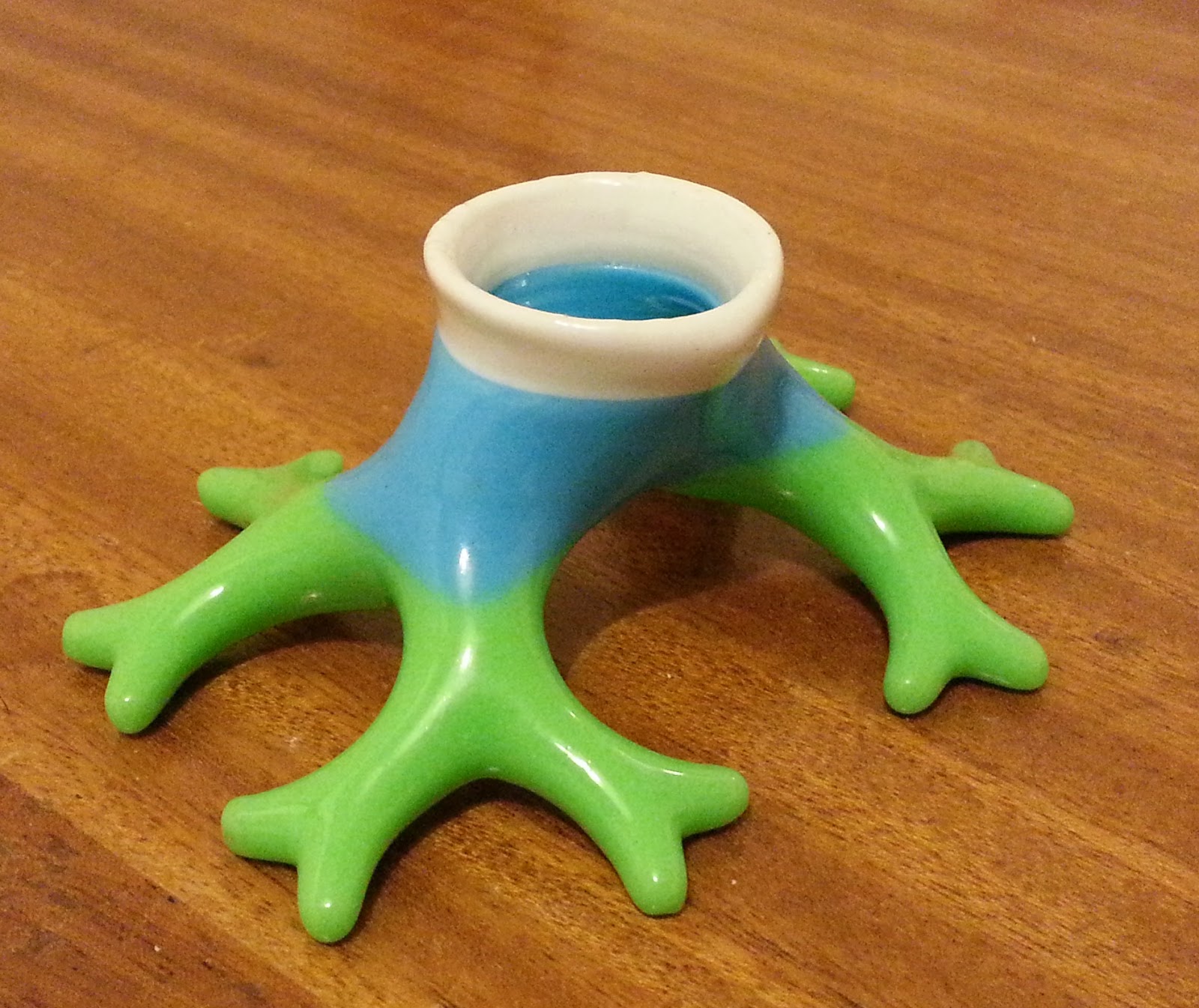
Inspired by the success of the surface finish I decided to revisit a print of Binary Roots by virtox. This design is possibly my favourite piece of art on thingiverse, I like the combination of geeky, useful and aesthetic. I had previously printed it in PLA:


 but this suffered from the same support material roughness as the stick bowl.

I had to test a number of abs colours a few weekends ago and combined the testing with a 0.75 scale print of Binary Roots, here it is prior to the vapour treatment with the support marks obvious on the bottom.


And following the acetone vapour bath, smooth and watertight ready to be a miniature plant pot:


Further info on the acetone vapour bath process is well covered in a number of blog posts by Austin Wilson. I wonder if my next Mendel90 will be made with smoothed parts....

Thursday, 16 May 2013

Basic Marlin Configuration.h modification

In order to set up Marlin firmware to work with your 3D printer the Configuration.h file needs to be modified to match your hardware. This post will describe the basics of modifying Configuration.h.

The version of Marlin this is based on is the current (as at 15/05/13) Marlin_v1 version, modified slightly to incorporate the Think3dPrint3d Panelolu2. There are various different Marlin versions:

EricZalm master version
Think3DPrint3D version
RepRapPro version
Nophead version

This post is aimed at helping users of RepRapPro Marlin and Nophead's Marlin migrate their configurations to T3P3 Marlin in order to use the Panelolu2; however it may be helpful to others who are setting up their configuration.h for the first time.

Refer to the working/default Configuration.h from your current setup if you have one and use that as a guide to what settings to put at each stage - if in doubt use the default setting from your printer manufacturer as a start point.

Note: I do not cover every setting, just the main ones to get up and printing.

Environment

The T3P3 version of Marlin is only tested on Arduino-0023 and on the following electronics boards:

Sanguinololu 1.2, and 1.3a
Melzi
RAMPS 1.3 and 1.4
Printrboard

First open Configuration.h in your favourite text editor or the Arduino IDE (it is located in <Marlin Folder>\Marlin\Configuration.h)


(from this point on I am not going to use screen shots for each Configuration.h line)

I will refer to the line number in the version of the T3P3 firmware available today. This will change over time and get out of date but it will be a good start and it should be fairly obvious which line I am referring to. You can see the line number on the bottom left of the Arduino IDE screen - in the shot above the cursor is on line 12.

Add an Author/Version


Line 12
#define STRING_CONFIG_H_AUTHOR "(<something useful here>)" //Who made the changes.

This is helpful to confirm with a glance which version of your configuration.h is loaded on your hardware:


Baudrate


Line 20
// This determines the communication speed of the printer
#define BAUDRATE 250000
//#define BAUDRATE 115200


Keep this on the faster setting unless you have a need to use a slower setting. Make sure you select the same baudrate in Pronterface (or your control software) as you have set here when you connect.

Motherboard


Line 51
#define MOTHERBOARD 7

As the comment above this line shows there are many supported electronics motherboards. Make sure you chose the right version for your electronics (for example 63 for Melzi, 33 for RAMPS 1.3/1.4 with 1 extruder, 34 for RAMPS 1.3/1.4 with 2 extruders etc).

Temperature Measurement


Line 90
#define TEMP_SENSOR_0 1
#define TEMP_SENSOR_1 0
#define TEMP_SENSOR_2 0
#define TEMP_SENSOR_BED 1

Most printers will use a thermistor, and a common choice is the "EPCOS B57560G104F". The standard table number "1" works fine for this thermistor. I have copied two tables from Nophead's version of Marlin into the T3P3 version - numbers 11 and 12. If you have a Mendel90 kit from Nophead then these will probably be the best choice for you (although they were numbered 8 and 9 in Nophead's version, I had to change the numbering as 8 and 9 were already taken in the master version).

If you have a RepRapPro printer, their custom version of Marlin does not use a pre-calculated thermistor lookup table but computes the values directly. I have incorporated this into the latest T3P3 version on Marlin as described in my previous blog postMy copy is rather untested so use with caution. Even though on-the-fly calculation is now available, I recommend using tables. Nophead's blog describes the theory behind the table calculations and the "createTemperatureLookupMarlin.py" script in the Marlin folder allows for the calculation of an accurate table for your thermistor and temperature range of interest.

If you want to use the calculated thermistor values then:

Line 97
//use RepRapPro Algebraic Temperature calculation rather than
//the tables - still experimental in this version of Marlin.
#define ALGEBRA_TEMP 

Line 104 onwards
Choose the serial resistor for your electronics (4700 is standard)

#define SERIAL_R 4700
//#define SERIAL_R 10000

Choose your thermistor Beta values (from the data sheet, ask your supplier) and value at 25C (100K thermistor is 100000, 10K is 10000)

// EPCOS B57560G104F (the standard 100K one)
#define E_BETA 4036.0
#define E_NTC 100000.0
#define BED_BETA 4036.0
#define BED_NTC 100000.0

Other standard thermistor types that RepRapPro uses are already in configuration.h, commented out. If you change to these types then comment out the lines referring to the EPCOS and uncomment the lines for the thermistor values that match yours. For example to use the latest RepRapPro thermistor values comment out:


// EPCOS B57560G104F (the standard 100K one)
//#define E_BETA 4036.0
//#define E_NTC 100000.0
//#define BED_BETA 4036.0
//#define BED_NTC 100000.0

and uncomment

// RS 198-961
#define E_BETA 3960.0
#define E_NTC 100000.0
// Rapid 61-0446 ; Semitec 103GT-2 All RepRapPRo Mendels and Thermistors shipped after 1/4/13
#define BED_BETA 4126.0
#define BED_NTC 10000.0

Temperature at Print Start

Line 137
#define TEMP_RESIDENCY_TIME 10 // (seconds)
#define TEMP_HYSTERESIS 3       // (degC) range of +/- temperatures considered "close" to the target one
#define TEMP_WINDOW     1 // (degC) Window around target to start the residency timer x degC early.

These allow you to control how close to the exact set temperature the thermistor reading needs to be to begin extruding. The defaults work OK, however to get a quicker start, I change my TEMP_RESIDENCY_TIME to "5" and TEMP_WINDOW to "2".

Max and Min Temperatures


The printer will give an error if the temperatures are outside of these values. I find that in a cold garage in winter the MIN_TEMPs need to be "1" rather than "5". Don't comment out or set to 0 or else the hotend could overheat if the thermistor is disconnected or breaks.

Line 144-155
#define HEATER_0_MINTEMP 1
....
#define HEATER_0_MAXTEMP 275
....

PID Temperature control


In order to get more stable extruder temperature control the use of PID control is recommended. To enable it ensure PIDTEMP is uncommented.

Line 164
#define PIDTEMP

You need to set the PID constants specific to your hotend. See Wikipedia theory on PID control if interested (not required to make this work):-

Line 178 onwards
    #define  DEFAULT_Kp 22.2
    #define  DEFAULT_Ki 1.08  
    #define  DEFAULT_Kd 114 

By far the easiest way to calculate these is to use PID autotune once your firmware is uploaded to your printer. This function experiments with the reaction of your hotend and calculates the best PID values. For more detail of PID autotune check this wiki entry. Once you have the values you can save them to EEPROM (see the section later in this guide about enabling EEPROM) or you can replace the values in the firmware (at line 178 as shown above) and re-upload your firmware.

You can use PID on the heated bed in a similar manner but I don't find it necessary. To do so uncomment PID_TEMP_BED:

Line 203
#define PIDTEMPBED

and define the constants for your bed. It is best to use PID autotune for this as well, choosing a different target temperature, as suggested in the Marlin comment:

"FIND YOUR OWN: "M303 E-1 C8 S90" to run autotune on the bed at 90 degreesC for 8 cycles."

Line 216
    #define  DEFAULT_bedKp 10.00
    #define  DEFAULT_bedKi .023
    #define  DEFAULT_bedKd 305.4

Extruder protection

The following lines prevent extrusion when conditions are not right.

Line 233
#define PREVENT_DANGEROUS_EXTRUDE
#define PREVENT_LENGTHY_EXTRUDE

Only comment them out to override the effect they have if you have a specific reason for doing so.


Endstops

For Sanguinololu, RAMPS, Melzi and most other common electronics all the endstop pullups should be on - ensure line 248 is uncommented:

Line 248
#define ENDSTOPPULLUPS

Generally you want the endstops to trigger when open: this is controlled with the following lines:

Line 270
const bool X_ENDSTOPS_INVERTING = false; // set to true to invert the logic of the endstops. 
const bool Y_ENDSTOPS_INVERTING = false; // set to true to invert the logic of the endstops. 
const bool Z_ENDSTOPS_INVERTING = false; // set to true to invert the logic of the endstops. 

For more information on endstops and why it is generally better to have Normally Closed Endstops have a look at this part of the Reprap wiki and the linked forum post.

Axis direction is controlled by the motor wiring and by these lines:

Line 287
#define INVERT_X_DIR false    // for Mendel set to false, for Orca set to true
#define INVERT_Y_DIR false    // for Mendel set to true, for Orca set to false
#define INVERT_Z_DIR true     // for Mendel set to false, for Orca set to true

Many printers only have 3 endstops, one per axis, so you have to tell the firmware which end to home towards:

Line 296
// Sets direction of endstops when homing; 1=MAX, -1=MIN
#define X_HOME_DIR -1
#define Y_HOME_DIR -1
#define Z_HOME_DIR -1

This combined with the length of the axis sets the dimensions of the printer. It is worth using software endstops to keep the print head within the print area during normal operation:

These need to be set to the correct values for your printer or else you can command the printer to move outside of the area it can cover and potentially cause damage.

Line 300
#define min_software_endstops true //If true, axis won't move to coordinates less than HOME_POS.
#define max_software_endstops true  //If true, axis won't move to coordinates greater than the defined lengths below.
// Travel limits after homing
#define X_MAX_POS 205
#define X_MIN_POS 0
#define Y_MAX_POS 205
#define Y_MIN_POS 0
#define Z_MAX_POS 200
#define Z_MIN_POS 0

I find that it is safest with a new printer to set the MAX_POS values to less than the maximum theoretical sizes, then physically check how much more travel is possible and adjust the values upwards if appropriate.

Movement Settings

These settings define how fast your printer's axis move and set the accuracy of moves. In most cases there will be a direct copy from the configuration.h file of your printer supplier. First is the speed the axes move during homing; this is in mm/s and the format X,Y,Z,E. E is 0 because the extruder is not homed.

Line 325
#define HOMING_FEEDRATE {50*60, 50*60, 4*60, 0}  // set the homing speeds (mm/min)


The next line defines how many steps of the stepper motor are required to move an axis by 1mm. Getting this wrong means the printer axis will not move the right distance. You MUST change the settings from the defaults (unless you actually have an Ultimaker!). Once again the format is  X, Y, Z, E. Prusa's calculator is very helpful for calculating the appropriate X, Y and Z values for your stepper motors, belt pitch and pulley teeth. For E, because hobbed bolts all vary slightly, the only way to get the correct value is to start with a reasonable value (e.g. 700 for a Wade's) and calibrate your extruder: RichRap's Slic3r blog provides detailed instructions for doing this.

Line 329
#define DEFAULT_AXIS_STEPS_PER_UNIT   {78.7402,78.7402,200.0*8/3,760*1.1}  // default steps per unit for ultimaker


The following lines set the speed and acceleration of your printer. Often the quality of prints can be improved by using slower acceleration values and smaller XYJERK values. They definitely need setting down for less-rigid machines with threaded-rod frames. Check the default values in the Marlin as supplied with your machine and use these to start with.

Line 330 Onwards
#define DEFAULT_MAX_FEEDRATE          {500, 500, 5, 25}    // (mm/sec)
#define DEFAULT_MAX_ACCELERATION      {9000,9000,100,10000}    // X, Y, Z, E maximum start speed for accelerated moves. E default values are good for skeinforge 40+, for older versions raise them a lot.

#define DEFAULT_ACCELERATION          3000    // X, Y, Z and E max acceleration in mm/s^2 for printing moves 
#define DEFAULT_RETRACT_ACCELERATION  3000   // X, Y, Z and E max acceleration in mm/s^2 for r retracts

// The speed change that does not require acceleration (i.e. the software might assume it can be done instantaneously)
#define DEFAULT_XYJERK                20.0    // (mm/sec)
#define DEFAULT_ZJERK                 0.4     // (mm/sec)
#define DEFAULT_EJERK                 5.0    // (mm/sec)

EEPROM - Saving Settings without recompiling firmware

When EEPROM is enabled there are three locations where versions of the printer settings are stored.
  1. Hard-coded in Firmware in Configuration.h.
  2. In the running RAM of the microcontroller - not saved on power down or reset.
  3. In EEPROM
If EEPROM is enabled the settings are loaded from EEPROM, not from the hard-coded values in Configuration.h. EEPROM settings can be updated using a series of "M" commands. See the G-Code page on the RepRap wiki for a description of all the G and M codes including those for saving and reading from EEPROM.

I recommend enabling EEPROM_SETTINGS and EEPROM_CHITCHAT
Line 356

//define this to enable eeprom support
#define EEPROM_SETTINGS
//to disable EEPROM Serial responses and decrease program space by ~1700 byte: comment this out:
// please keep turned on if you can.
#define EEPROM_CHITCHAT

Display Screens - Panelolu2

There are an increasing number of LCD screens supported by Marlin, but this post only covers the Panelolu2. To enable the Panelolu2 uncomment the following line:

Line 381

#define PANELOLU2

If you don't like the buzzer making a beep sound then comment out the PAN_BEEP

Line 386
 #define PAN_BEEP //comment out to disable buzzer

I recommend that you get your printer working without enabling the Panelolu2 first and then uncomment the #define PANELOLU2 line afterwards. Note that Marlin will hang if the PANELOLU2 is enabled but not connected.

Thats it!

Please feel free to leave useful links to further information in the comments to this blog post.

Wednesday, 15 May 2013

Algebraic Thermistor readings

As part of a larger piece of work to make it easier for users of RepRapPro Marlin to use a Panelolu2 I have implemented RepRapPro's use of maths to convert the raw ADC values from the thermistor inputs into temperature readings.

The maths in question is the B parameter equation which uses the Beta value specified for NTC thermistor to approximate the curve.

I added the following code to temperature.cpp:-


float analog2tempi(int raw, const float& beta, const float& rs, const float& r_inf)
{
   return = ABS_ZERO + beta/log( (raw*rs/(AD_RANGE - raw))/r_inf );
}

along with some #ifdef ALGEBRA_TEMP to compile the computational functions and information only if required.

In order to use this, download the latest version of the T3P3 branch of Marlin and make the following changes to Configuration.h


//use RepRapPro Algebraic Temperature calculation rather than
//the tables - still experimental in this version of Marlin.
#define ALGEBRA_TEMP 

and define the series resistor and Thermistors specific to your setup:


// Uncomment ONE of the next two lines - the one for the series resistors on your controller (most common is 4700)
#define SERIAL_R 4700
//#define SERIAL_R 10000

// EPCOS B57560G104F (the standard 100K one)
#define E_BETA 4036.0
#define E_NTC 100000.0
#define BED_BETA 4036.0
#define BED_NTC 100000.0


The data sheet for your thermistor will give the Beta value, the E_NTC or B_NTC is the value of the thermistor at 25C which for a "100K" thermistor is 100 000.

Warning: This is only tested with a variable resistor and an EPCOS B57560G104, and the equation used is an approximation - it is not as accurate as a well defined table.

To do: Investigate using a better equation, such as the equation that Nophead describes here which is in the new createTemperatureLookupMarlin.py script in Marlin.


Wednesday, 24 April 2013

Panelolu2 for RAMPS and Printrboard

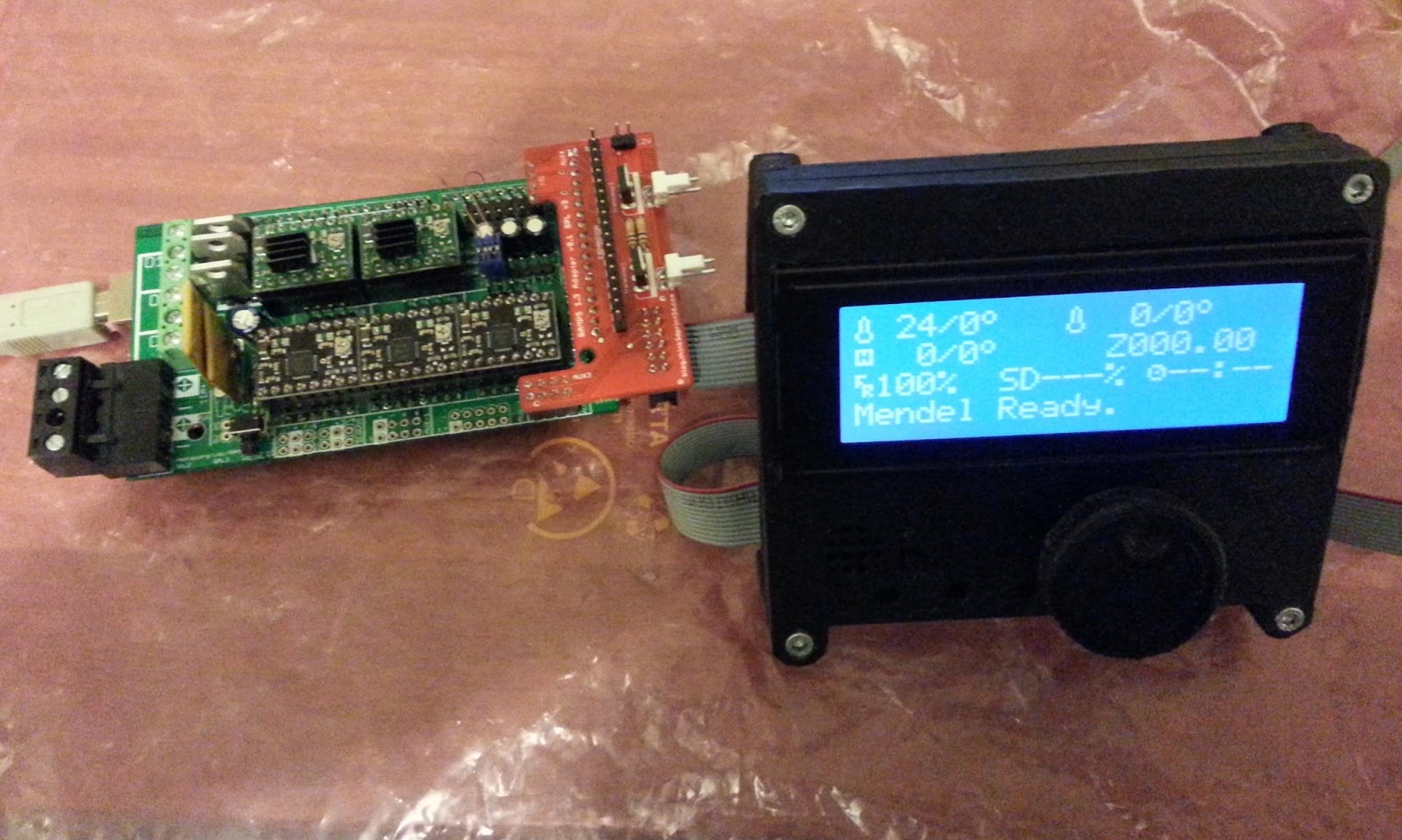
Panelolu2 LCD display and control solution working with RAMPS 1.3 and Printrboard.

Finally they are here, the much requested adapter boards that allow the Panelolu2 to interface with RAMPS 1.3 and Printrboard. For details on the background of the Panelolu2, along with more details on how to set it up, how the print the enclosure etc, please see the previous post.

RAMPS 1.3 Adapter

The first point to note is that due to physical differences between RAMPS 1.3. and 1.4, this adapter is sized for RAMPS 1.3 and will not fit on RAMPS 1.4. 

[Update: Panelolu2 with RAMPS 1.4 adapter is also now available from our webstore]


In a similar way to the Melzi and Sanguinololu adapters, the RAMPS 1.3 adapter has two MOSFETs that can be used to switch fans or other small loads. This allows the RAMPS 1.3 with Panelolu2 to control two extruders each with their own software controlled fan.

The schematic and annotated diagram below shows the RAMPS pins used and the connections.


View from the bottom


View from the top showing the purpose of each connector


Transistor 1 is connected to Arduino digital pin 45 which can be controlled by PWM, Transistor 2 is connected to Arduino digital pin 49, a straight on/off pin. The transistors switch the 12V supplied through the input - this must be connected in order to get any output from the transistors.

The additional expansion header breaks out all the pins not used by Panelolu2 along with the I2C pins if you want to add more devices to the bus.

Printrboard Adapter

Update 06 Oct 2014 - check out Colin Bell's blog post about getting this to work with the latest printrbots and board.


This is tested on Printrboard Rev D & E only as I do not have an earlier revision boards to test with.


For the Printrboard Adapter I decided to go for a minimalist approach. There are no additional MOSFETs - it is simply a physical adapter. The reason for this is twofold; firstly the Printrboard already has an onboard MOSFET to switch a fan and secondly, with the default fuse settings, there are no spare pins on the EXP 1 header.


As can be seen from the Schematic above the only pins left unused (and broken out to header SV1) are TDI, TDO,TMS and TCK. These are set as JTAG pins by default although they can be configured for use as I/O, this process is detailed in this blog post. I could have gone with an adapter board that connected to both EXP 1 and EXP 2 on the Printrboard but decided that small was best in this case.


Marlin Firmware Setup

The T3P3 branch of Marlin, available from github, has been updated to include support for the Panelolu2 on Printrboard and RAMPS. Every printer configuration is slightly different but the generic workflow for updating your firmware to support the Panelolu2 is as follows:


  1. If you are not already using it get the standard version of Arduino-0023 from the Arduino website, note that this version of Marlin has not been tested with Arduino 1.0 or higher.
  2. Get T3P3 Marlin from github.
  3.  For Printrboard follow the reprap wiki advice to get up and running with firmware, Lincomatic's blog post is also useful. For RAMPS, support for the Arduino Mega 2560 is built into standard arduino
  4. Get LiquidTWI2 as mentioned in my Panelolu2 blog post, note that configuration changes are no longer required in the latest version of LiquidTWI2.
  5. Modify the configuration.h of the Marlin to fit your printer setup (setting like controller board, axis dimensions, thermistors, etc). Update: This blog post should help.
  6. Confirm Marlin compiles and uploads with //#define PANELOLU2 still commented out in configuration.h.
  7. Then uncomment #define PANELOLU2 , along with #define EEPROM_SETTINGS and #define EEPROM_CHITCHAT and confirm it compiles and uploads. Note that with the #define PANELOLU2 uncommented, you must have the Panelolu2 connected or Marlin will hang and not finish initialising.
  8. Check the printer operation and calibration to ensure you have edited the Marlin configuration.h properly.


Getting one

As always the hardware is open source so the design files are available on Github:
https://github.com/T3P3/Panelolu2.

Update: Now available on eMakershop and Ebay.