Saturday, 4 August 2012

PCB Heatbed MK2a

PCB Heatbed MK2a
I have made a number of small design changes to the MK2 heatbed. These are as a result of feedback from customers and advice from members of the RepRap community, especially thanks to Nophead for his extremely helpful comments.


The resistance, track layout and dimensions of the board are unchanged, the improvements can be seen in this close up of the connection area:


Bed levelling. I added another mounting hole mid way down the front side. This allows for three point mounting and a much simplified bed levelling. I got the idea from Nophead in conversation and his blog post on bed levelling. It is worth noting that this idea has been addressed a number of times before using three points between the bottom and top plate on a Sells/Prusa Mendel: see Kritzinger.net and NumberSix's blog. The advantage of having it on the heated bed is machines like the Mendel90 with one platform under the bed can also benefit from the point mounting and easier levelling.

Cable soldering. On the subject of the Mendel90, soldering ribbon cable to the big exposed pad areas is much easier now (previously I had scraped an area to solder onto, once again copying Nophead, in this case in the Mendel90 build instructions). In addition the through holes are larger to allow for thicker cable to be fed through from the other side if not using ribbon cable. The redundant pads have been removed from the other side of the board as, with no plated through holes, they were not electrically connected.

Surface mount component sizes. The pad dimensions for the LEDs and resistor are enlarged to take 1206 surface mount components. These should be much easier to solder, I will post an update once I have assembled some boards and have some pictures)

The Eagle board file is available on the reprap wiki,and the boards are available through our webstore as well as eMakershop and eBay.

Sunday, 22 July 2012

Disabling JTAG on PrintrBoard

Disabling JTAG on PrintrBoard - Get 4 more I/O pins

As I discovered while getting the Panelolu working with a Printrboard the JTAG interface is enabled by default. This uses 4 pins on one of the expansion headers:


In order to get access to these pins the JTAG interface needs to be disabled: to do this you have to change the fuses on the AT90USB1286 micro. An ISP is required (I use the Pololu AVR ISP) but others should work fine.

Warning: You can "brick" your micro if you mess up the fuse settings: handle with care and I don't recommend you mess with the clock settings!

Lincomatic describes how to set the fuses in his blog post on uploading a bootloader to the AT90USB1286. He has the following settings

LOW : 0xDE
HIGH: 0x9B
EXT: 0xF0

Using the fuse calculator at engbedded.com, start by selecting the AT90USB1286 and then put the DE,9B and F0 setting in at the bottom of the page. After applying these settings it is simple to deselect the "JTAG Interface Enabled" check box and recalculate the settings. The only one which has changed is the HIGH setting to 0xDB

Using the version of avrdude that comes with arduino 0023 change the fuse setting to disable the JTAG interface:

avrdude -c avrispv2 -p at90usb1286 -U hfuse:w:0xdb:m  -C ..\etc\avrdude.conf -P com40

You will need to change the "-c avrisp2" to match your ISP and the "-P com40" to match the com port it's on.

Now that we have read-write access to those pins the connections for the Panelolu can use 1 less plug and stay on just one expansion header:


The pin allocations are:

With pin numbering of:
TDI = 42
TDO =43
TMS = 44
TCK = 45

The only change to the firmware from that described in my previous post is:

pins.h

      #define LCD_PINS_D4        42
      #define LCD_PINS_D5        43
      #define LCD_PINS_D6        44
      #define LCD_PINS_D7        45
 
So if you have an ISP and want 4 more IO pins this is the way to go. If you are going to buy a Printrboard then ensure you get your supplier to change the fuses to disable the JTAG interface before sending it to you.

Panelolu with Printrboard

Panelolu with Printrboard

Update: The Panelolu2 has replaced the Panelolu. It is much quicker to install, has adapter boards to no messing with cables and uses less pins. The blog post with the information is here, it is available to buy in our webshop.

The Printrboard is a based on the Teensylu which is itself a derivative of the Sanguinololu; the main difference is the use of the AT90USB1286  in place of the ATmega644P or 1284P.


Thanks to the work of Lincomatic, Marlin firmware will run on the AT90USB1286. The Printrboard section of the RepRap wiki page has information on the board and an outline of how to upload the firmware - you will need Lincomatic's fork of Marlin. The Printrboard I bought was supposed to come with a bootloader but that did not work. I followed Lincomatic's instructions to install the CDC bootloader using the Pololu ISP I have used previously on ATmega644P and ATmega1284P micros. It's worth ensuring you have a working setup with the Printrboard connecting to your control software (Pronterface for me) and firmware uploading before you go any further.

Built in SD card reader or SDSL?

The Printrboard has a build in SD card reader so you do not need an SDSL. That said I prefer to have the electronics hidden away, so using the SDSL in the Panelolu is my preference. Both options will work and are described below.

Hardware and wiring the Panelolu

The wiring internal to the Panelolu is identical to that described in my previous post, with the option not to bother with wires 13,15,16,17,19,20,21,22 and the 10 pin IDC connector if you are going to use the build in SD card reader on the Printrboard.
Unfortunately the design of the expansion headers on the Printrboard does not keep to the standard 2.54mm spacing between the expansion header and the ISP header (and 4 pins on ext1 are not I/O by default) - a simple IDC connector will not fit without bending the pins . The solution is to use the same connectors that are used on the LCD and circuit board within the Panelolu.


The pin out is as follows:
 
Ribbon cable wire number
Printrboard Pin Label
Marlin Pin
number
Marlin Pin
name
 1
 Not used *
---
---
 2
 Not used *
---
---
 3
 GND
---
---
 4
 5V
---
---
 5
 PD4
4
LCD_PINS_D7
 6
 A3
41
LCD_PINS_RS
 7
 PD6
6
LCD_PINS_D6 
 8
 TX1
2
ENC1
 9
 PE1
9
LCD_PINS_D5
 10
 RX1
3
ENC2
 11
 PC1
11
LCD_PINS_D4
 12
 SDA
1
LCD_PINS_ENABLE
 13
 A2***
40
SDSS
 14
 SCL
0

 18
 RESET**
---
---
* Wire 1 and 2 are not connected/used but kept in for consistency with the original instructions.
** Can come either from the RESET pin on the expansion header or the ISP header.
*** Only required if a SDSL is used rather than the on board SD card reader

Update There was a mistake in the table above, thanks to Colin Bradburne for bringing the problem to my attention. It is fixed now - the lines in red have been amended.

If using the SDSL rather than the on board SD card reader then the following connections to the ISP header are used as well.

Ribbon cable wire number
Printrboard Pin Label
Marlin Pin number
Marlin Pin name
 17
 GND
---
 ---
 18
 RESET
---
 ---
 19
 MOSI
 22
MOSI_PIN
 20
 SCLK
 21
SCK_PIN
 21
 5V
---
 ---
 22
 MISO
 23
 MISO_PIN

The Printrboard I bought does not have the expansion header pins labelled, I have annotated the pins on the screen shot of the board below:
The 4 pins labelled "JTAG PINS" are set to the JTAG interface by default - I have done a separate blog post about how to change the fuse settings to gain access to these pins as I/O. This does mean that we can't fit the Panelolu connections onto just one expansion header, hence the 4 pins on the second expansion header towards the centre of the board

The ribbon cable with the connectors will look like this:

Pairing this picture with the annotated screen shot of the board should show how to plug in the cables. (note that wire 1 and 2 are not in this picture as they are not used and that a 4 pin connector is used for MISO,SCLK and RESET because I ran out of 3 pin connectors)

Firmware configuration

The following firmware changes to Marlin are required to get the Panelolu working with a Printrboard. Please note that line numbers are based on my version of Lincomatic's branch of Marlin - they may be slightly different with a different version or after additional changes are made.

Configuration.h

line 34-40:
#define MOTHERBOARD 81

#if (MOTHERBOARD == 81) //printrboard
 #define SDSUPPORT
 //comment out the following line to use onboard SD card reader

#define USESDSL
#end
if
 
line 234:
#define ULTIMAKERCONTROLLER  

Pins.h

within the Printrboard (81) section
line 953 -984  
  #ifdef ULTRA_LCD
    #ifdef NEWPANEL
      //we have no buzzer installed
      #define BEEPER -1
      //LCD Pins
      #define LCD_PINS_RS        41
      #define LCD_PINS_ENABLE    1
      #define LCD_PINS_D4        11
      #define LCD_PINS_D5        9
      #define LCD_PINS_D6        6
      #define LCD_PINS_D7        4

      //The encoder and click button
      #define BTN_EN1 2  //must be a hardware interrupt pin
      #define BTN_EN2 3 //must be hardware interrupt pin
      #define BTN_ENC 0  //the click
      //not connected to a pin currently
      #define SDCARDDETECT -1
     
      //from the same bit in the RAMPS Newpanel define
      //encoder rotation values
      #define encrot0 0
      #define encrot1 2
      #define encrot2 3
      #define encrot3 1
     
      #define BLEN_C 2
      #define BLEN_B 1
      #define BLEN_A 0

    #endif //Newpanel
  #endif //Ultipanel

Sd2PinMap.h

Line 224-236

// SPI port
#if MOTHERBOARD == 81 //printrboard
#ifdef USESDSL  //SDSL with Panelolu
uint8_t const SS_PIN = 40;    //F2
#else
uint8_t const SS_PIN = 26;    // B6
#endif
#else
uint8_t const SS_PIN = 20;    // B0
#endif
uint8_t const MOSI_PIN = 22;  // B2
uint8_t const MISO_PIN = 23;  // B3
uint8_t const SCK_PIN = 21;   // B1 

To explain what the firmware changes actually do:
  • Add the USESDSL define to configuration.h which allows easy toggling between the onboard SD card reader and the SDSL
  • Enable the ULTIMAKERCONTROLLER which the PanelMax and Panelolu are derivatives of.
  • Define the pins that are used for the Panelolu within the Printrboard section of the pins definition file
  • Add a check to the SdPinMap to see if SDSL on onboard card reader is selected with the USESDSL define.
Summary

To get a Panelolu working on Printrboard: 
  • Confirm you can connect to the Printrboard and upload firmware - if not follow Lincomatic's instructions for loading a bootloader.
  • Get Lincomatic's branch of Marlin and make the changes listed in the Firmware section above.
  • Get the components required for a Panelololu and wire up the Panelolu end as described in my previous post.
  • Wire up the end of the ribbon cable that is going to the Printrboard as described above. 

Friday, 20 July 2012

Panelolu Circuit Board

Panelolu Circuit Board

Update: The Panelolu2 has replaced the Panelolu. It is much quicker to install, has adapter boards to no messing with cables and uses less pins. The blog post with the information is here, it is available to buy in our webshop.

Thanks to Jason Thompson we now have circuit boards for the Panelolu to replace the breadboards. The circuit has not changed so if you are sourcing the bits yourself the breadboard is still a good option and will work fine; however the circuit board makes assembly easier and quicker - thanks Jason!


We have assembled some boards and soldered the headers onto LCDs so there is now an option to buy the kit from us with pre-soldered components.


They are available from eMakershop and eBay, as options.

Update: The Original design by Jason Thompson is available on the Think3dPrint3d Github:
https://github.com/T3P3/Panelolu1

Friday, 29 June 2012

Panelolu - In Depth

Update: The Panelolu2 has replaced the Panelolu. It is much quicker to install, has adapter boards to no messing with cables and uses less pins. The blog post with the information is here, it is available to buy in our webshop.


Panelolu is an LCD and rotary encoder with a click button control solution which derives from the PanelMax Prusa by tommyc. It allows control of a 3D printer running Marlin firmware and Sanguinololu or similar electronics directly without having to have a computer connected. Stand-out features are the ability to start and stop prints, control print speed while printing and change many calibration settings - saving these to the memory on the ATmega 1284 (EEPROM) so they are persistent if you turn the printer on and off. Continuing with tommyc's design the panelolu has mounting brackets for the Prusa mendel or other threaded rod based printers. The brackets are separate from the enclosure so they can simply be replaced with a different design for a different mounting solution.


The Panelolu is designed to use as little soldering as possible (if the breadboard comes pre-assembled and the LCD with plugs fitted then no soldering is required at all) and to allow an easy upgrade path. It uses the SDSL card reader, so if you already have one there is no need to get another. Rather than soldering wires directly to the LCD, headers have been fitted so future changes can re-use the LCD simply.

Whats in the case
 What's in the case

The schematic is a little tangled but each wire can be traced from the Sanguinololu - through the 24 way IDC connector and ribbon cable to its final destination in the enclosure. A 22 way IDC connector would have worked fine but they're are hard to find so we use a 24 way and don't plug in pins 23 and 24.


Assembly instructions

Step 1 - Assemble the tools and components

The Panelolu can be assembled with a few basic tools:
  • Allen Key for the M3 socket head fastenings
  • Cross head screw driver for the SDSL and breadboard mounting screws
  • Small needle nose pliers for crimping connectors
  • wire cutters
If you are assembling the breadboard you will also need a soldering iron and solder.

The enclosure is on thingiverse, as a OpenScad file and STL.

The components are as in the picture below:


The rotary encoder is this one, the reset switch and pots are very generic. Most LCD panels come with mounting holes for M2.5 screws, but I prefer to drill these out slightly and use M3, the enclosure has M3 holes but they should work ok with M2.5 if you prefer to use that.

Step 2 - Assemble the breadboard and the LCD connectors.
(if you get them pre-assembled ignore this step and move to step 3!).

UPDATE: We now supply Panelolu kits with circuit boards - the breadboard instructions below are only necessary if you want to source your own components.

Note these instructions are for a the breadboard assembled with the click encoder on the right of the panel as you look at it from the front - If you want it on the left then mirror the layout.


The schematic contains the circuit diagram for the breadboard. It is laid out to minimise the number of jumper wires required - many of the connections can be bridged.


An absolute minimum of 4 rows and 29 columns are needed in order to fit the screw holes in. The components are placed as shown:


and from underneath:


As shown on the left of the picture of the underside the encoder's mounting legs have been bent round to hold it securely to the board.

The picture below shows the different circuits.

To start with make the direct connections for "ENC 1", "CONT", "BRT" and "RST".

Next use small lengths of wire to make the remaining connections. Leave as little excess wire as you are comfortable with, as it will be easier to fit into the housing:
Solid lines are wire, dotted lines solder connections.


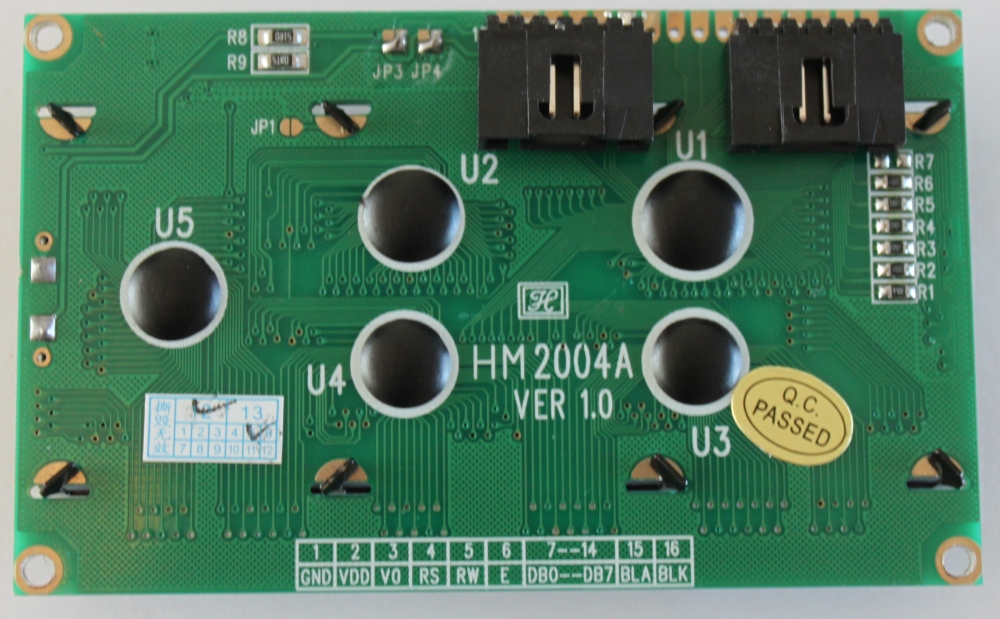
Now do the LCD: Solder the 6 way right angle headers onto the LCD pins 1-6 and 11-16. The picture shows shrouded headers but normal right-angle pin headers are fine.

 
Step 3 - Fit the SDSL and 24 way IDC sockets

Using the cable numbering from the cable picture, you are connecting wires number 13-22 into the SDSL plug. Note the polarity as shown in the pictures. Ensure you leave at least 10 cm of length on the cable past the plug, as this will make wiring the remaining connections easier.


The easiest way to fit IDC connectors without a proper (and expensive) tool is to use a small vice. Ensure the cable is in square in the connector and the the pressure applied by the vice is even - don’t rush this bit! The back should click into the connector.


The 24 way IDC socket is fitted in the same way; ensure you use pins 1-22 of the socket (a 22 way socket would be even better but hard to find)


Step 4 - Fitting the crimp connectors.
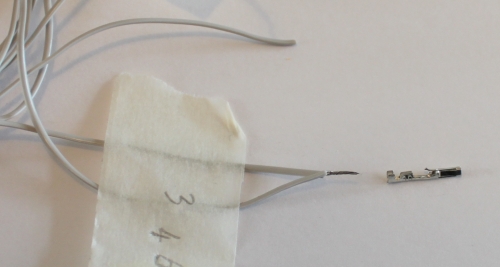
There are three 6-way connectors and a 2 way connector that use crimp terminals. These can be crimped using small needle nose pliers if you don't have a crimping tool. Nophead has an excellent video on how to crimp them.

I found it easiest to identify the wires for each connector from the circuit diagram and the photo below and cut them to length before fitting the pins. Be sure not to make them too short!


The 12V and ground pins on the expansion header are not used by Panelolu but I have left the wires so they can be connected to something else if required. The pieces of wire offcuts in the picture are used to make the connections between the various sockets (as shown in thicker green wires in the schematic near the top of the blog post). Leave these a little longer than the minimum distance to assist with assembly at the end. On some pins you will need to connect two wires to one pin:


Once complete the assembled cable should look like this:


Step 5 - Assemble

It is easiest to first screw on the SDSL socket  and the bread board with the LCD in position, then the strain relief and finally bring the two halves together to plug in the 4 connectors. Although the SDSL itself can be fitted once completely assembled it's easier to fit it at this stage ensuring the orientation is correct.

Close it all up, being careful not to trap any wires. The length of socket setscrews used will depend on the mounting solution. There is a 5th small screw to hold the bottom of the case below the click encoder closed.
I will do a second post about mounting once I have some better pictures of it mounted on a prusa and my Mendel 90 mounting solution sorted.

Firmware

In order to use this you need a 1284P in your Sanguinololu and the Marlin firmware needs the changes that I mentioned in my previous post and have pasted here as well:
Configuration.h
Line 34:
  #define MOTHERBOARD 62 
Line 190-205:
  #define EEPROM_SETTINGS
    //to disable EEPROM Serial.....
    // please keep turned on if you can.
  #define EEPROM_CHITCHAT

  //LCD and SD support
  //#define ULTRA_LCD  //general lcd support, also 16x2
  //#define SDSUPPORT // Enable SD Card Support in Hardware Console

  #define ULTIPANEL
  #ifdef ULTIPANEL
    #define NEWPANEL  //enable this if you have a clicencoder panel
    #define SDSUPPORT
    #define ULTRA_LCD
    #define LCD_WIDTH 20
    #define LCD_HEIGHT 4

Configuration_adv.h
Line 163:
  //#define SDCARDDETECTINVERTED

pins.h, making sure to be within the sanguinololu pin definition part of the file. For my pins.h this was lines 557 - 657. I added the following 34 lines, copied from the RAMPS section of the pins.h

  #ifdef ULTRA_LCD
    #ifdef NEWPANEL
      //we have no buzzer installed
      #define BEEPER -1
      //LCD Pins
      #define LCD_PINS_RS        4
      #define LCD_PINS_ENABLE    17
      #define LCD_PINS_D4        30
      #define LCD_PINS_D5        29
      #define LCD_PINS_D6        28
      #define LCD_PINS_D7        27

      //The encoder and click button
      #define BTN_EN1 11  //must be a hardware interrupt pin
      #define BTN_EN2 10 //must be hardware interrupt pin
      #define BTN_ENC 16  //the switch
      //not connected to a pin
      #define SDCARDDETECT -1
     
      //from the same bit in the RAMPS Newpanel define
      //encoder rotation values
      #define encrot0 0
      #define encrot1 2
      #define encrot2 3
      #define encrot3 1
     
      #define BLEN_C 2
      #define BLEN_B 1
      #define BLEN_A 0
     
    #endif //Newpanel
  #endif //Ultipanel
 
Finally..
Complete kits (less the printed parts) are now available on eMaker and eBay.